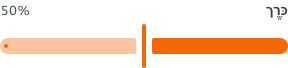
- Always visually highlight the selected value within the trailing label of the form label, ensuring the user can easily see their precise choice.
Slider
A slider is an interactive element for selecting values or ranges by dragging a handle along a track.
Dos and Don'ts
- Don’t use when an element is displaying the status or completion of a task, using the Progress Bar instead.
- Don't use when exact values are critical. If a user must select an exact number, a text input is usually more appropriate.
Anatomy
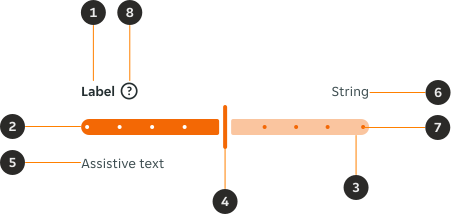
- Form label (Optional): The form label provides necessary content / information to a form with an optional trailing string.
- Progress line: Illustrates the visual representation of the selection.
- Progress container: Shows a user’s available minimum and maximum values on the range to select from.
- Handle: An indicator that can be moved on the track within the slider range to specify a selected value.
- Assistive text (Optional): The Assistive text provides additional instructional information / error / success messaging.
- String (Optional): A text label aligned to the end of the slider, for showing a unit, limit, or contextual value alongside the range.
- Tick marks (Optional): Tick marks indicators show which predetermined values can be chosen on the slider. The slider handle snaps to the closest stop.
- Help or info tooltip (Optional): A small icon users can tap to see extra information about what the slider does or how to use it.
Variants
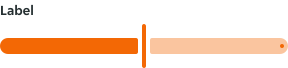
Default
Modifiers
Tick marks
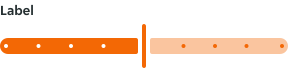
Tick marks are used to indicate specific values, providing users with clear reference points to move their handle to.
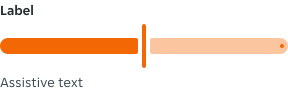
Assistive text
Assistive text can be used to add additional information for the user in order to help them use the form element.
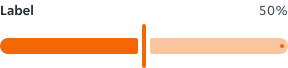
String
The String displays the current numeric value of the slider at the position of the thumb (the end handle). It can be toggled on or off depending on whether you want users to see a precise readout alongside the visual slider position.
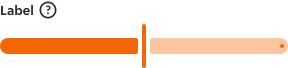
Help or info icon
The help or info icon is an optional element. When interacted with, it triggers a tooltip with additional information about the slider. This element is useful when the label alone may not be enough to guide the user.
Interactions
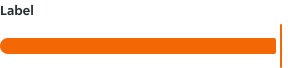
Users can adjust the handle's position by either dragging it along the progress container or tapping directly on a specific point within the container to reposition the handle.
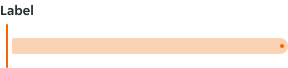
Start position
Middle position
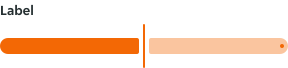
End position
Interactive states
Outlines the atomic level interactive elements for the component.
Default state
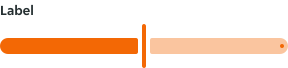
Active state
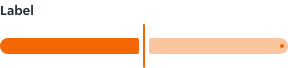
Disabled state
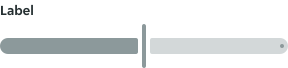
Examples
LTR examples
Here are some examples of the component in left-to-right context:
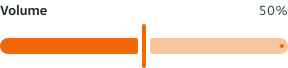
RTL examples
Here are some examples of the component in right-to-left context: