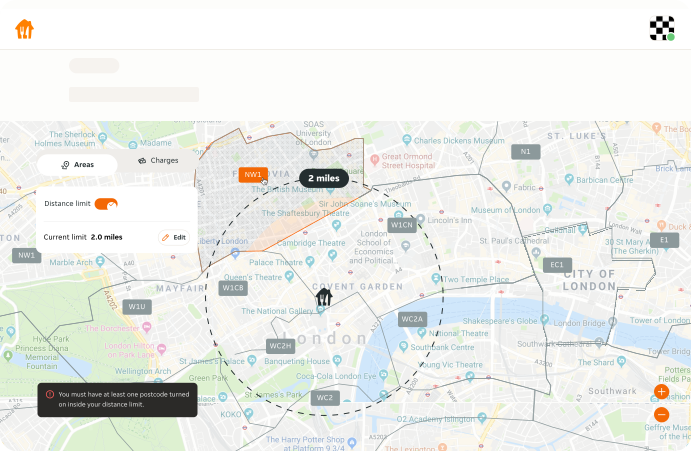
- All error messages should be clear, concise and ensure that users can easily see and understand the issue.
- Ensure the error message stays visible until the issue is resolved.
Errors
Errors occur when a product or interface fails to do what the user wants it to do. Error patterns help users recover in such circumstances.
Overview
The implementation of error states and the corresponding messages can vary from scenario to scenario. It is important that all error messages are visible, understandable and useful to the user.
- Avoid using toasts, tooltips, or pop-ups for critical or blocking error messages. They offer limited space to communicate the error and can disappear after a certain duration or user action.
- Don't overwhelm users with technical jargon or vague messages.
- Don't leave users without a clear course of action.
Hierarchy
Each type of error provides specific feedback to help users understand and correct the issues, ensuring a more user-friendly experience.
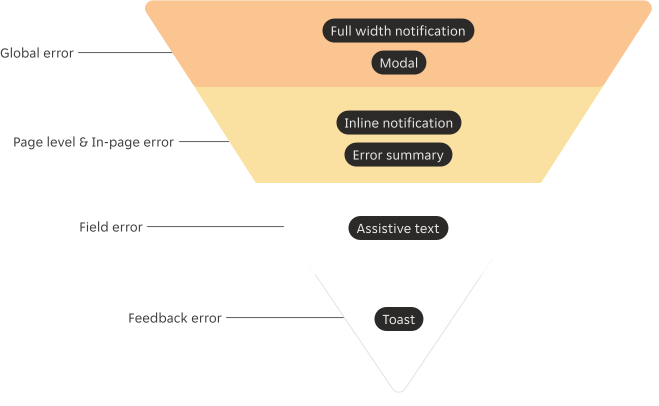
These errors can be categorised into four main types:
- Global error: impacting the whole hub or the system
- Page level and in-page error: affecting a page or a specific section within a page.
- Field error: occurring within a specific input field.
- Feedback error: providing non-crucial feedback that doesn't block the user's flow.
These error types can be conveyed through different components, forming a hierarchy in how errors are managed and communicated to the user.
Global error
Global errors affect the entire website or application and should be highly visible and communicated clearly. They are typically shown either as a full width notification component at the top of the interface, or a modal component can also be used to sit on top of all content.
- Apply to errors that affect the entire website or application.
- Explain the problem clearly and provide guidance for users to resolve the issue.
- Don't apply to errors within a specific page or section.
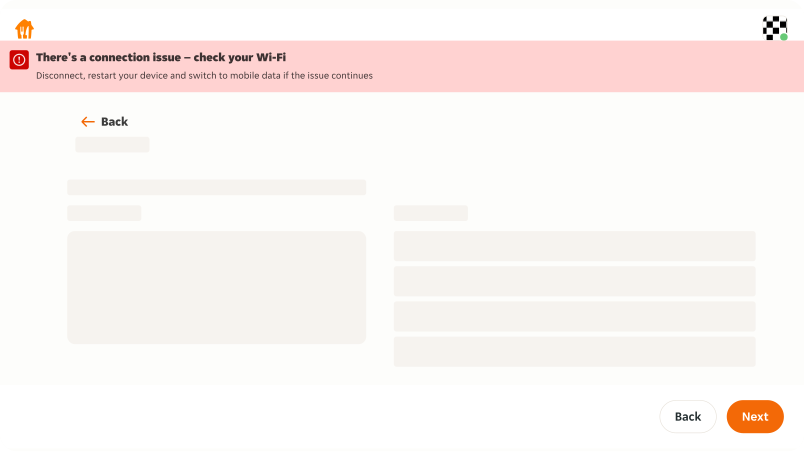
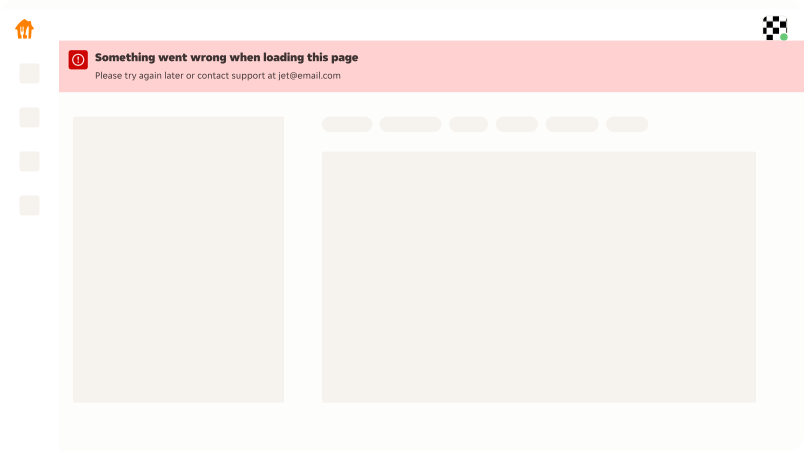
Full width notification
Use a full-width notification for global errors such as network issues, server/app downtime, or loading failures. Interaction may be limited or temporarily blocked, but the interface can still be visible for users to understand where they are, and is often used for temporary error states.
Full width notification must be placed at the top of the page or screen, typically directly below the navigation bar. This ensures high visibility while maintaining the overall page context.
Modal
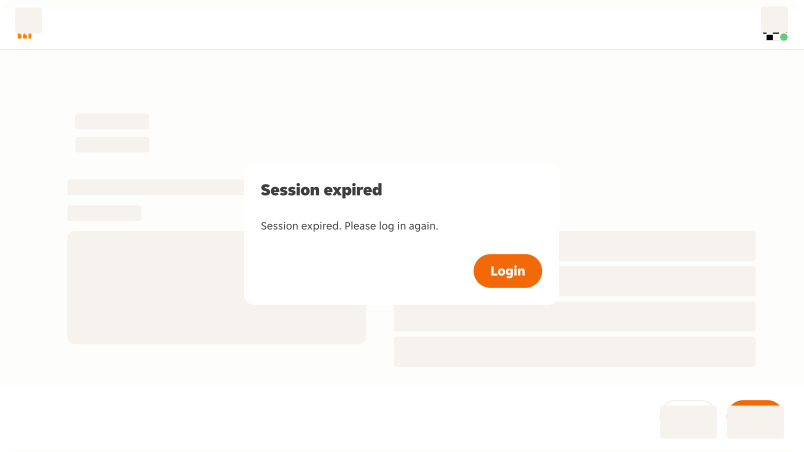
Use a modal for critical errors that require immediate attention and block further interaction fully, such as session expiration that require users to log in again. It overlays the page and focuses the user on the required action before they can continue.
Page level and in-page error
Page level and in-page errors relate to issues within either a specific page or a specific section within a page.
Both types of error can be communicated with notification component or error summary component. The error messages should appear near their context.
- Provide specific details about what went wrong and how to fix it.
- Keep the error message close to the related content for context.
- Don't apply to errors that affect the entire website or application.
Inline notification
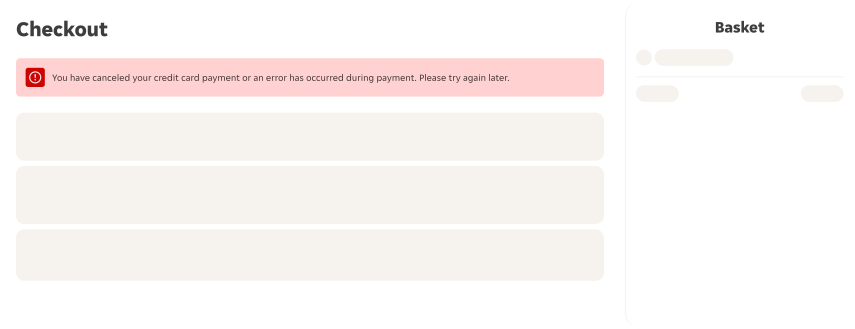
Use inline notification to address general errors, for example, a payment error on a checkout page.
Error summary
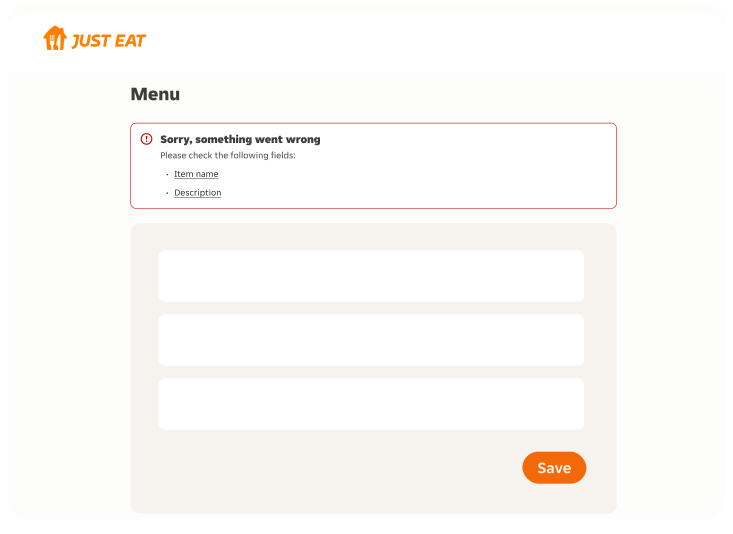
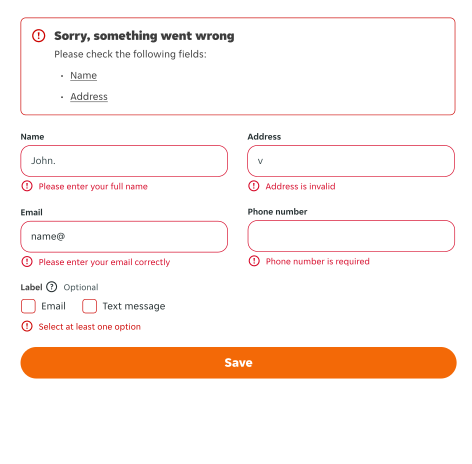
Use the error summary if it is a validation error or submission error that occurs when a user submits a form.
Field error
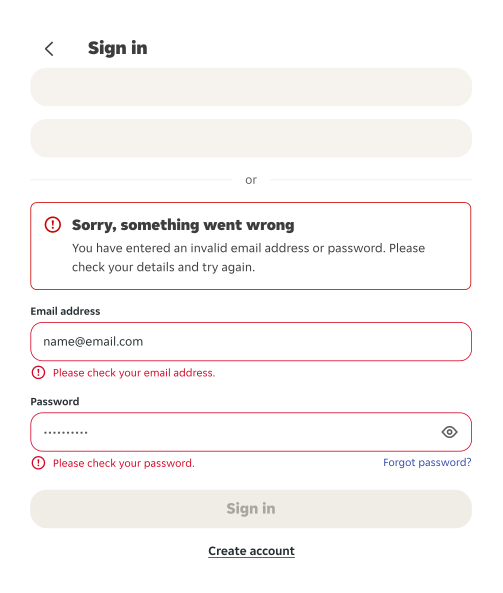
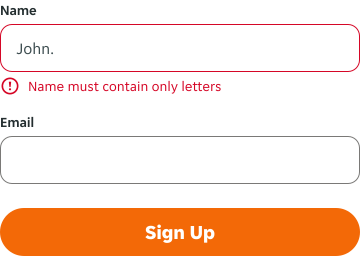
Field error relates to individual input field within a form or data entry section. They provide feedback on the user's input to help users correct mistakes efficiently. Field errors can be highlighted using assistive text.
- Apply to input field error only.
- Provide clear instructions on how to correct the error in the field, not just that an error exists.
- Don't apply to errors that affect the entire website or application.
- Don't validate fields before the input is complete.
Assistive text
Real-time validation
Detects and displays errors as the user interacts with each field, providing immediate feedback as the user completes the input. Examples include: invalid input format, required fields left empty.
Error summary
Validation on submit
Detects and displays errors only after the user submits the form, with messages below each field and an error summary at the top.
Feedback error
The toast component can communicate errors that occur as a minor feedback about an operation or a user action that are non-critical and do not block the primary workflow or main functionality of the page or application.
- Apply to non-critical errors only.
- Provide clear instructions on how to correct the error, not just that an error exists.
- Don't use it for crucial errors that prevent users from continuing their flow, consider notification instead.
Toast
Use the toast component to provide feedback on errors, such as a failed user action that doesn't affect the user's current flow.
The toast component can be auto-dismissed, meaning it will automatically disappear after a certain amount of time to give users enough time to read the message without blocking the information behind it for too long. It can also include an optional action, and remain persistent until manually dismissed by the user.