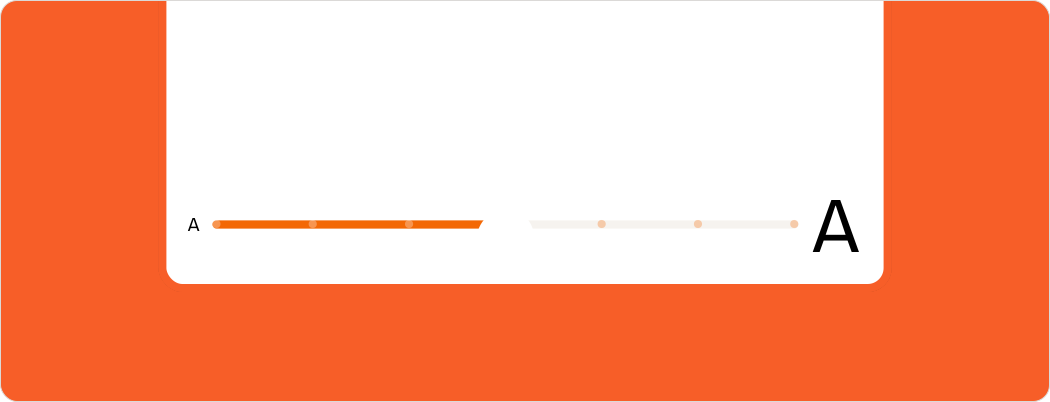
Text Scaling
An operating system setting that enables users to increase or decrease text size across the operational system and applications.
Overview
Text scaling, also known as dynamic text, allows users to adjust the size of text based on their preferences. This enhances accessibility for people with visual impairments or who prefer larger type. Both iOS and Android platforms support dynamic text in settings.
Text scaling versus zoom
While both text scaling and zooming can enhance readability, they are fundamentally different in their implementation and user experience.
Text scaling
This feature adjusts the size of text dynamically based on user settings or preferences. This affects only the text elements within the application, allowing for a more tailored and accessible experience. The layout and design of the application should accommodate these changes without compromising usability.
Zoom
This feature enlarges all visual elements, including text, images, and UI components. Zoom allows the user to magnify the entire screen or a specific area of the interface.
This setting can cause elements to become misaligned or require users to scroll both vertically and horizontally (dragging the elements on the screen) to view content that was previously visible.
How text scaling affects components
Typography
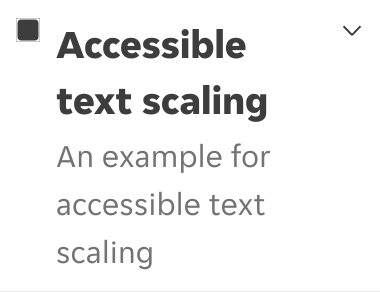
All text elements, such as headings, body text, and labels, should be designed to scale appropriately. Interactive components without text such as icon buttons don't scale.
Text scaling may affect the alignment and positioning of images and icons. Ensure that these elements remain visually balanced and do not interfere with the readability of text.
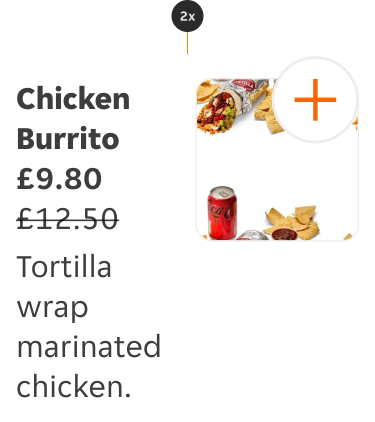
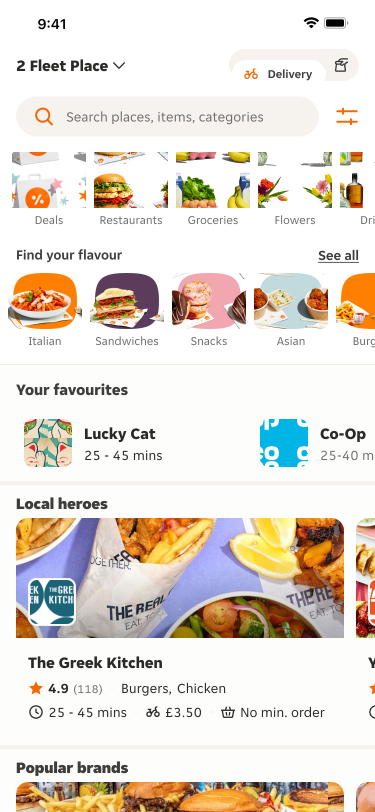
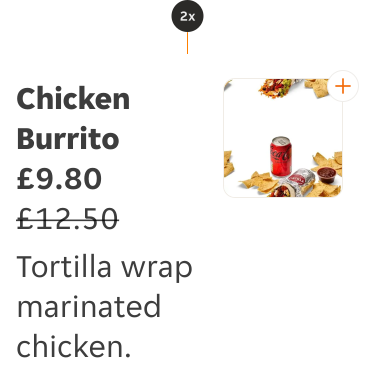
Card component with text scaling applied correctly.
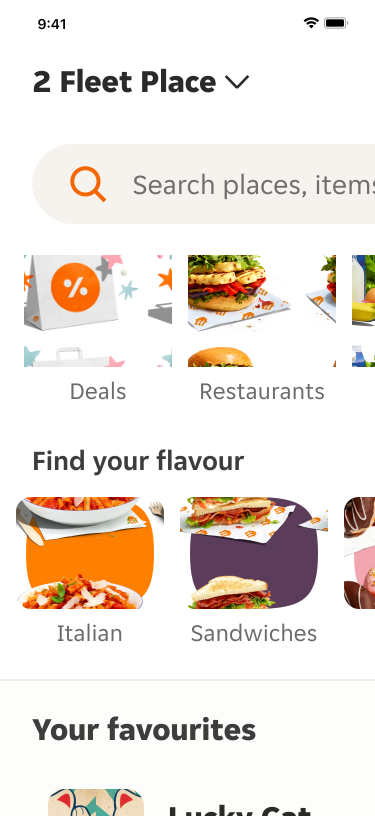
Card component with text scaling applied incorrectly where icon buttons and image elements are scaled together with the text.
Navigational elements
Navigational elements such as tabs, segment control, top and bottom bars should not have the text scaled. Users with text scaling settings enabled should be offered an alternative way to view text in these components.
On iOS, an option for that is 'Large Content Viewer' for the bottom bar navigation, and on Android and iOS, 'touch and hold tooltips' for most navigation elements.


Navigation component with text scaling applied correctly.
Navigation component with text scaling applied incorrectly where text is truncated.
Iconography
Increase the size of meaningful interface icons as font size increases. Make sure icons used to communicate important information are easy to view at larger font sizes too.
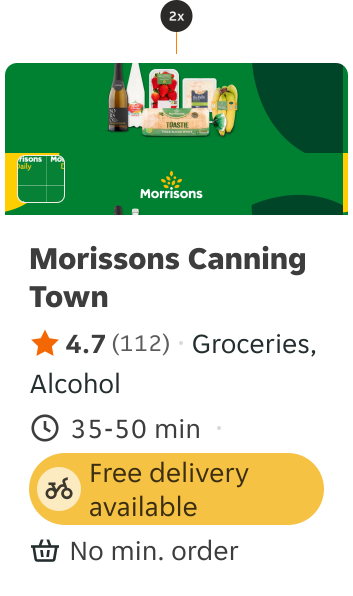
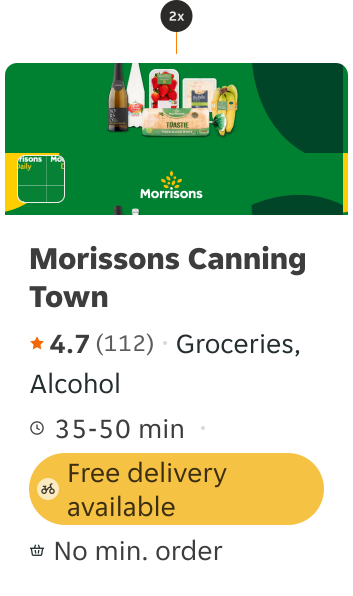
Card component with text scaling applied correctly where text and icons scale appropriately. Rating and Tag elements have icon and text scaled together.
Card component with text scaling applied incorrectly. Rating and Tag elements have text resized while the icon does not.
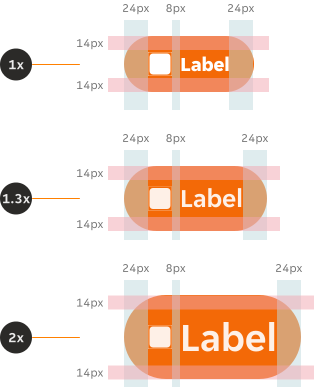
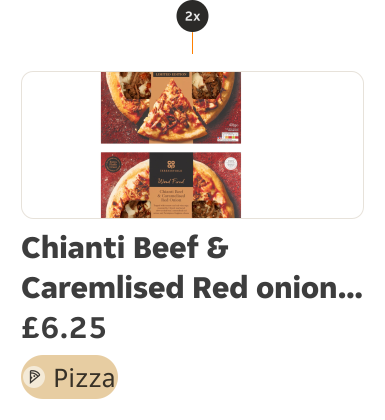
For tags we recommend adding an additional 8px padding to the right and left sides, regardless of if the icons scale or not. Please always ensure icons remain aligned to the centre of tags.
For BA Customer Tags, please see specific Customer Tag documentation.
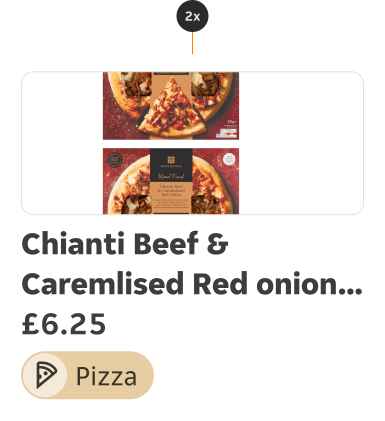
Example of tag sized x2 with additional 8px padding to the left and right.
Example of tag sized x2 without additional 8px padding to the left and right.
Truncation
Text with critical information should wrap to the next line to ensure understandability. Truncation might happen but it should be kept to a minimum.
In case truncation happens on important information offer an alternative for the user to read the full content. For example, add a "see more" link button to expand the container and provide access to the content.
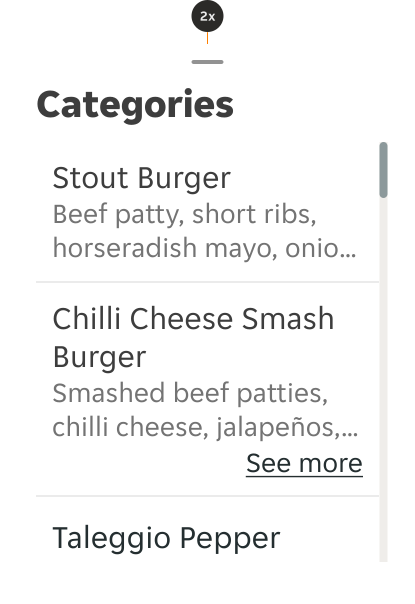
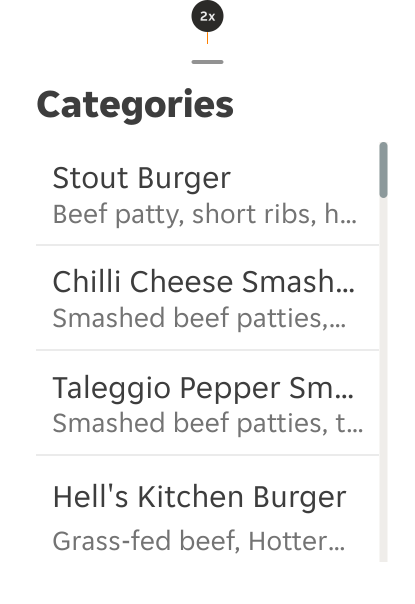
Card component with text scaling applied correctly where text wraps appropriately.
Card component with text scaling applied incorrectly where text truncates.
Layout and overflow
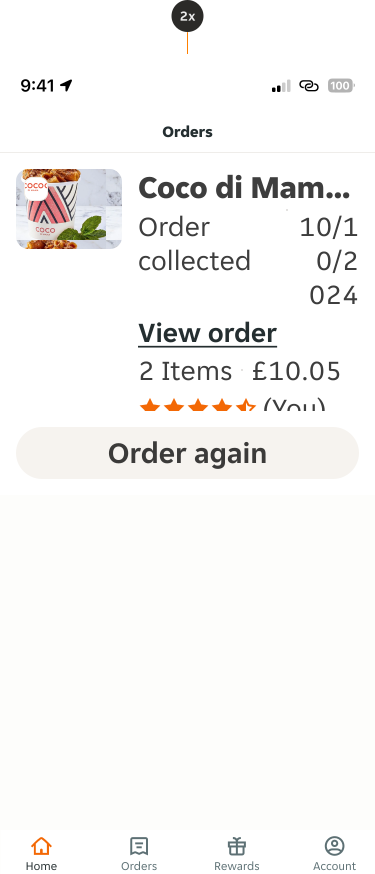
Components must be flexible enough to accommodate various text sizes. This may involve enabling text wrapping to prevent the text from overlapping, clipping, or truncating.
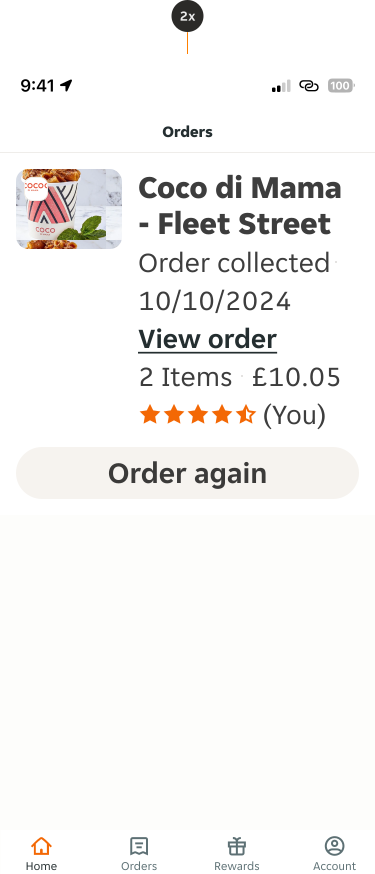
Card component with text scaling applied correctly where layout adjusts appropriately.
Card component with text scaling applied incorrectly where layout does not adjust appropriately and content legibility is compromised.
Container shape and behaviour
For round or pill shaped UI elements, such as buttons, chips and tags; ensure the container always retains it’s shape as it resizes. Text should never overshoot it’s container.
Card component with text scaling applied correctly where text wraps appropriately.
Card component with text scaling applied incorrectly where text truncates.
Interactive elements with text
Ensure that buttons and other interactive elements with text remain accessible and usable at larger text sizes. This may require adjusting padding and margins to maintain a comfortable touch target.
Text and line height scale up but padding and spacing between elements in a component remain the same.