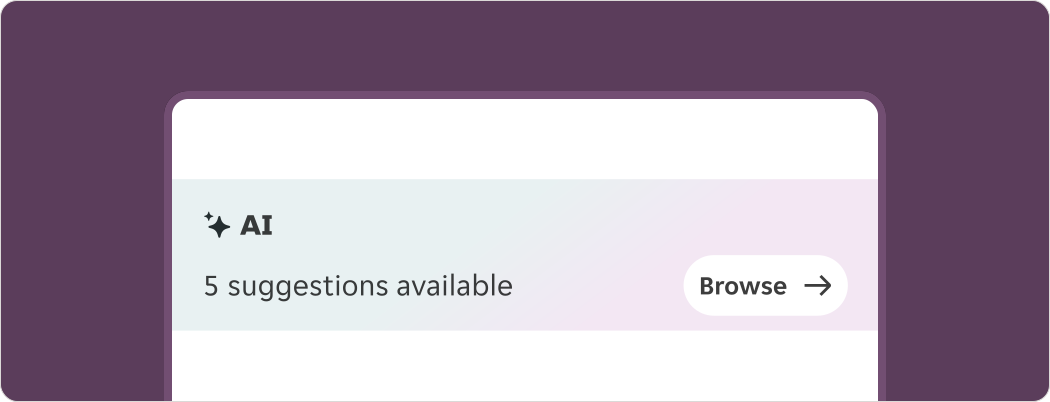
- Be transparent. Clearly label all AI content for user's trust and confidence.
- Use exclusive AI branding. Only use AI branding for content that uses AI. It will allow users to easily find and recognise it.
JET AI
JET AI visual identity covers the product style guide to use, create and maintain JET AI components and brand assets for a consistent visual language.
Overview
At JET we've started using AI to assist and elevate the customer experience.
We have established AI at JET with its own, distinct visual identity for the purpose of letting our customers quickly recognise AI generated content within our products. This is so that we can remain as transparent as possible in our use of AI.
We ask that you only use our AI branded elements for AI generated technology used in our product.
Brand principles
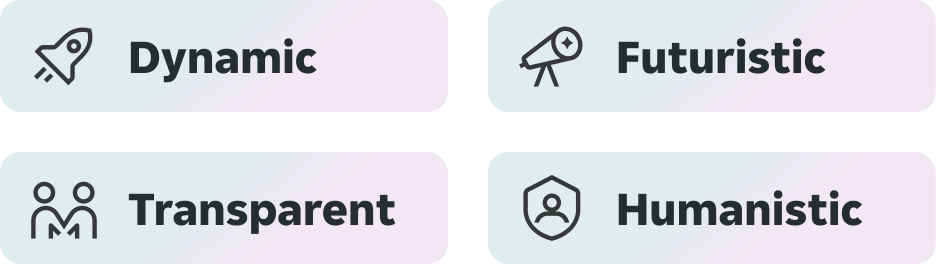
Dynamic
AI is ever-evolving, and our motion pieces reflect its dynamic nature—bringing the technology to life.
Futuristic
AI brings opportunity to elevate our user's experiences and drive efficiency, whilst supporting them with their tasks.
Transparent
To overcome trust barriers, we must clearly communicate when and how AI is used.
Humanistic
As AI is artificial, so it's important we create human-centered experiences that deliver real value.
Dos and Don'ts
- Don't make changes to the gradient. All gradients have specific uses, if you need something different, get in touch.
- Don't overlay gradients with other gradients. Gradient usage needs to be intentional. Please do not overlay gradients with other gradients (e.g. JET+).
Iconography
We do not have a dedicated logo, instead we use specific icons to communicate AI content at JET.
The sparkle icons should be used as the primary visual indicator for AI generated content and serve the purpose of letting customers quickly recognise AI generated content within our products.
Because of this we ask that the sparkle icons not be used in any other context or to convey any other meanings.
Icon variants
Currently we are only using the filled variant for both AI icons, if you'd like to use the outline variant please get in touch with the design system team in the #help-designsystem channel.
We use two types of icon for AI content:
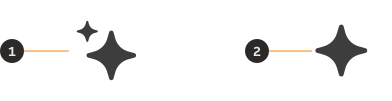
- Type 1: It's made up of 2 sparkles and should be used in all static AI content.
- Type 2: It's made up of 1 sparkle and should only be used in designs where the icon will be animated in build. See how we use this icon animated in our motion section of these guidelines.
Icon examples
The primary AI icon is ‘Type 1’ and includes 2 sparkles. This is to be used on all static AI content where the icon does not animate. For example, it can be used along with headings to signify the use of AI in the preceding information. We use this icon because it feels more interesting and dynamic than the alternative does when no animation is applied.
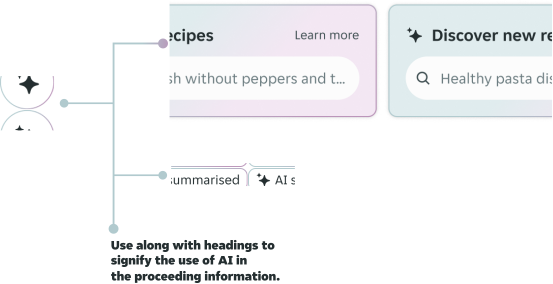
To see examples of our ‘Type 2’ icon animated please check the motion section of these guidelines.
Gradients
There are two main gradients available for AI content. A default gradient for containers, and another for borders. Both are available to be used independently or together. When applying them, consider the hierarchy of the AI content within the existing screen/journey.
AI gradients must be applied to neutral backgrounds and we never use gradients over other gradients.
Direction and angle
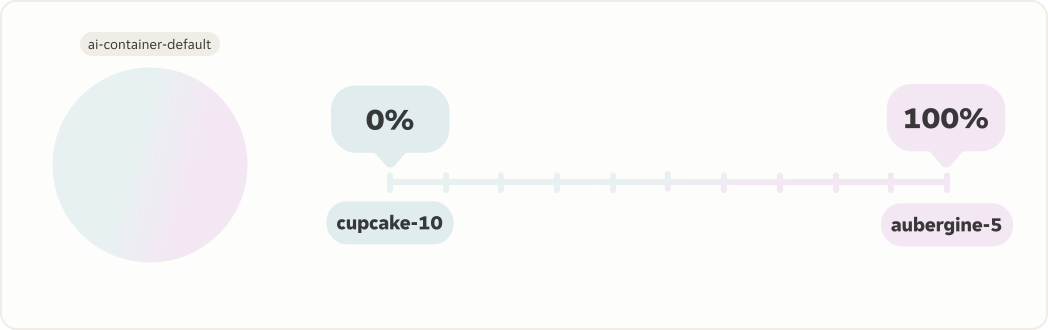
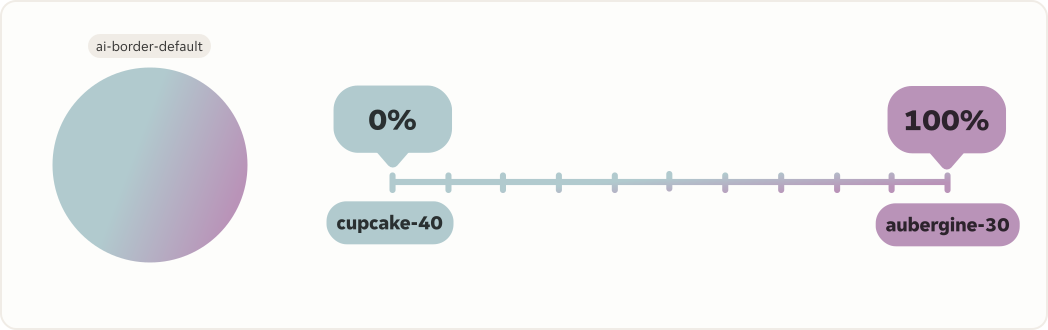
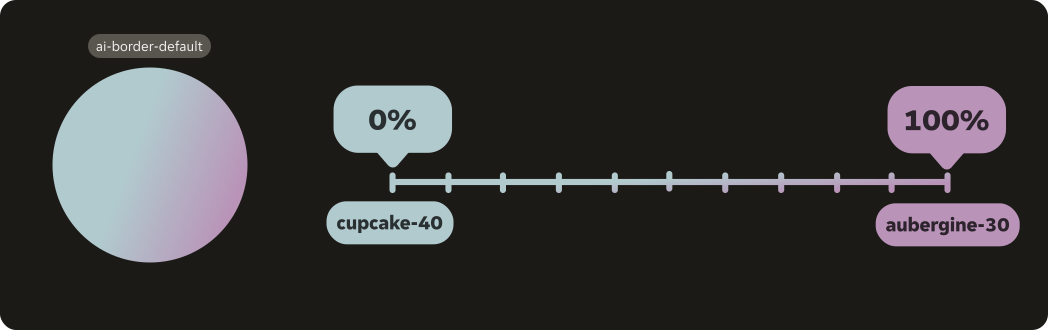
The border and container gradients have the same 140° angle applied to them. Cupcake is always top-left and Aubergine bottom-right.
The gradient tokens have the above applied. Do not edit or detach the gradients.
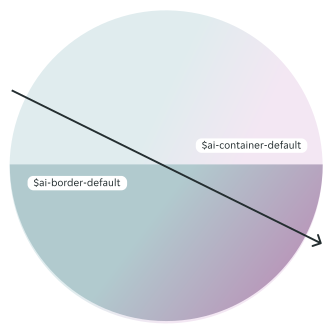
Gradients light mode
We have created two distinct gradients for AI content.
The token $ai-container-default can be used for small containers and cards under 162px.
The token $ai-border-default can be used as a strong border for buttons, tags and other containers (component section).
There is a border animation which can be used to highlight returned AI queries. See the motion section for more details.
Light mode $ai-container-default
Light mode $ai-border-default
Gradients dark mode
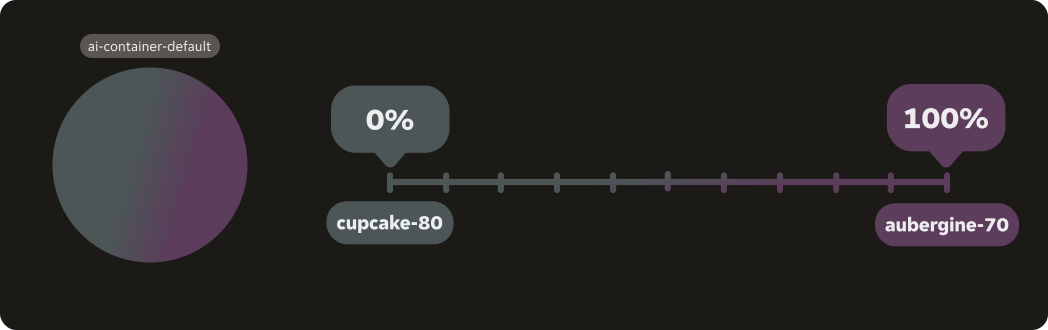
In dark mode, our $ai-container-default gradient token switches to a darker, but equally subtle version of the gradient on dark theme.
The token $ai-border-default, however remains the same. This is to preserve the brand identity of our AI content across themes.
Dark mode $ai-container-default
Dark mode $ai-border-default
Using images versus gradients
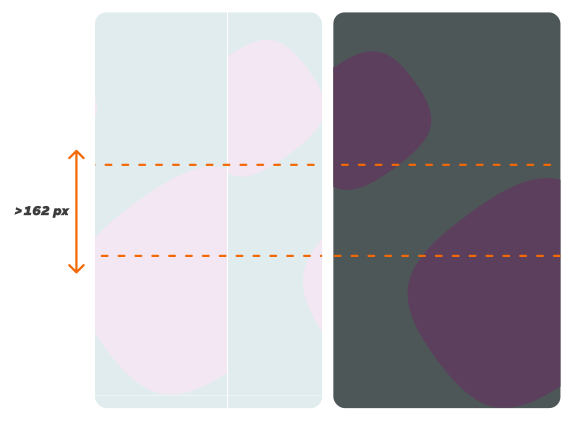
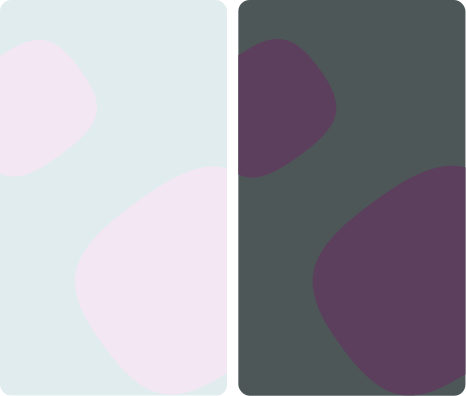
We use gradients specifically for our container and borders, however we highly suggest using this static image gradient background for content with a height of 162px or above. There is an animation for this background but this is to only be used in the AI assistants.
This gradient is more dynamic and works better at larger sizes. It comes in both light and dark variants and should be switched out according to the theme.
For design purposes please use the background component in our AI library. In AI Assistant products please use our supplied SVG and add a blur of 80dp.
Examples
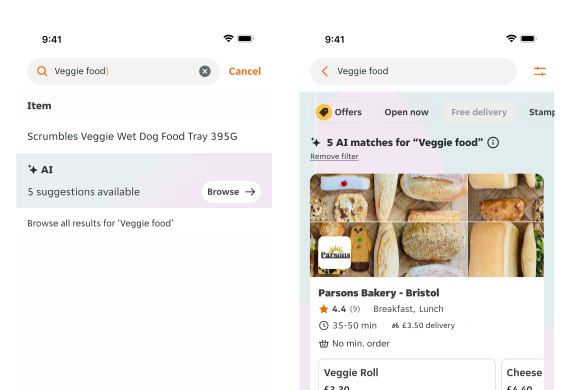
For content with a height below 162px use our linear fill gradient named ai-container-default. This has been created for specifically for containers and smaller UI elements such as tags and buttons.
For content with a height above 162px use the blob gradient background component in our AI library. In product please use our supplied SVG and add a blur of 80dp.
Colours
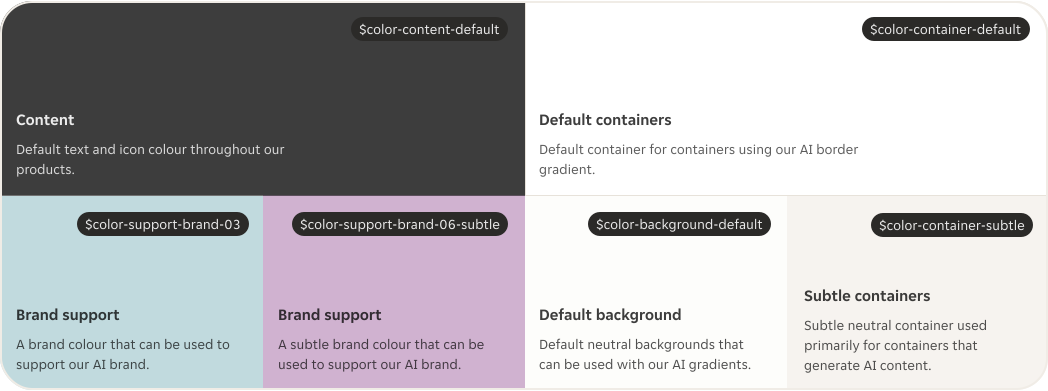
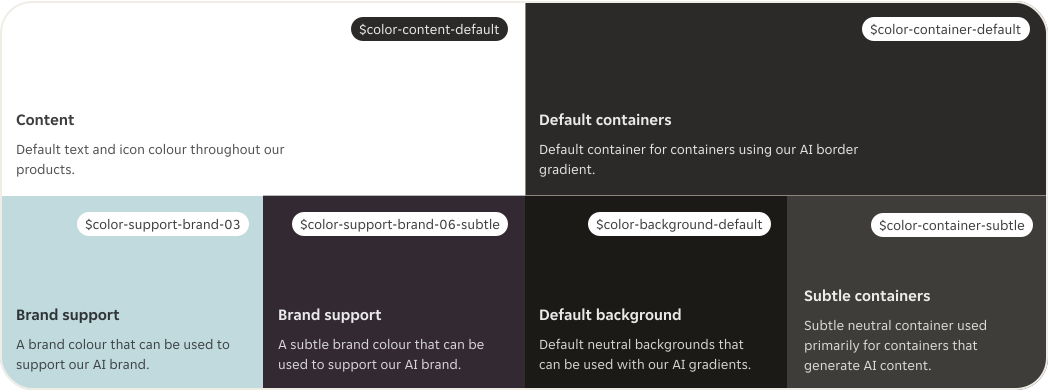
AI in product should primarily be communicated using gradients, as this is one of our main visual indicators for AI content.
However we aim to support our gradients with these additional colours from the PIE Foundations library.
Colours light mode
Colours dark mode
Motion
Motion is a huge part of how we communicate AI within our products. We use it to make the AI experience feel more dynamic whilst also enhancing loading states, usability, and new features.
Motion in AI should always feel smooth and fluid. Our motion intentionally mimics the pattern of breathing to ensure it feels calming and almost human like in nature.
If you would like additional motion pieces to support your work, please get in touch.
Animated background
Motion is a huge part of how we communicate AI within our products. We use it to make the AI experience feel more dynamic whilst also enhancing loading states, usability, and new features.
Motion in AI should always feel smooth and fluid. Our motion intentionally mimics the pattern of breathing to ensure it feels calming and almost human like in nature.
If you would like additional motion pieces to support your work, please get in touch.
Border animation
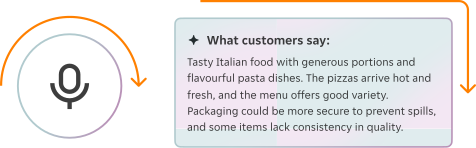
We use gradient border animations to capture user attention or signify user action in relation to AI generated content. Our gradient borders move clockwise.
Gradient border animations can be applied to buttons or containers and can either be continuous or play on a loop of two rotations and come to a stop.
Continuous animation works great for buttons where we want to callout user action whilst animating twice and stopping can be used to simply highlight returned AI queries that we wouldn't want to keep distracting the user with.
Thinking / Loading animation
Our thinking / loading animation is the heart of our AI and can be used in most places where AI query is in progress.
It plays on a loop - expanding from it's default shape to a subtle bloat before contracting back to default in order to mimic the pattern of breathing. It also spins between rounds.

Components
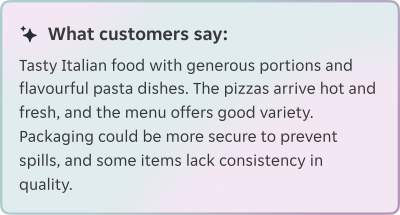
There are a selection of components with the AI gradients applied. These should primarily be used on default containers to avoid layering gradients.
If you would like additional components made to support your work, please get in touch with us on #help-designsystem.
- Use gradient backgrounds, borders and iconography. Keep work minimal and branding subtle.
- Don’t use multiple gradients on top of each other and repetitively apply the AI icon.
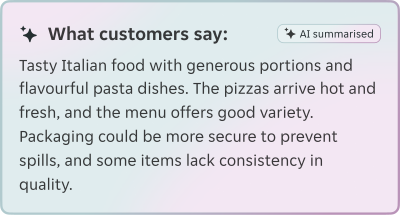
Layering components
Avoid repetitive use of the AI icon, especially in instances where the screen content is AI only (e.g. the AI assistant).
Designs including AI should be subtle and simple, with little visual clutter. Allow the gradient to be the main focus, with supporting neutral components.
Avoid layering gradient styles as it causes additional visual clutter.
- Create JET AI branded designs with little visual clutter, the UI should be subtle and simple.
- Allow the gradient to be the main focus, with supporting neutral components.
- Ensure AA compliant contrast when layering components and choose components with solid fill and text.
- Avoid repetitive use of the AI icon, especially in instances where the screen content is AI only (e.g. the AI assistant).
- Avoid layering gradient styles as it causes additional visual clutter.
- Avoid using component variants ghost, outline, secondary, etc as they can impact accessibility and contrast.
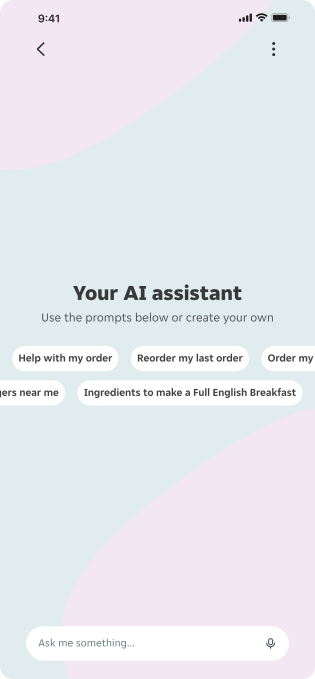
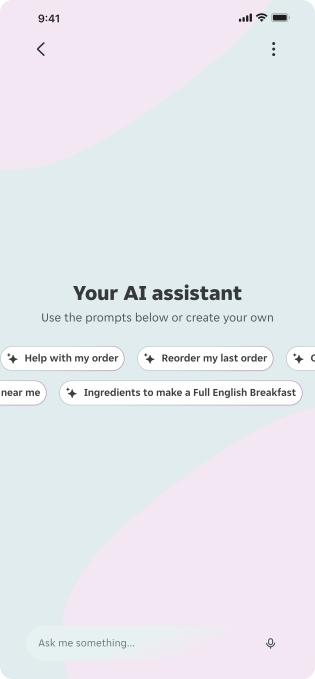
Button with icon
- Use icon 1 to clearly label that the action uses AI.
- Use icon 1 as there is no 'thinking / loading' motion used for buttons.
- Use only on default backgrounds as this uses the AI border gradient.

Button without icon
- Use when accompanying content that either includes a lot of AI language or the AI icon is already in use within the content.
- Use only on default backgrounds as this uses the AI border gradient.

Icon button
AI icon buttons should be used only on default backgrounds as they use the AI border gradient.
Use one of the AI icons as default to signify the use of AI:
- Use icon 1 if there is no motion involved.
- Use icon 2 if the 'thinking / loading' motion is involved.
You can also use other icons, as long as it relates to AI content or used within an AI experience, such as using the Microphone icon in the voice activation journey.

Tag
Motion variant
- Use the tag to clearly label that the content uses AI. You can use an interactive variant if you need to specify information regarding AI.
- Use icon 2 for 'thinking / loading' motion and icon 1 if for 'ellipsis' motion.
- Use only on default backgrounds as this uses a AI border gradient.

Static variant
- Use the tag to clearly label that the content uses AI. You can use an interactive variant if you need to specify information regarding AI.
- Use icon 1 as no motion is being used.
- Use only on default backgrounds as this uses the AI border gradient.

Generating query
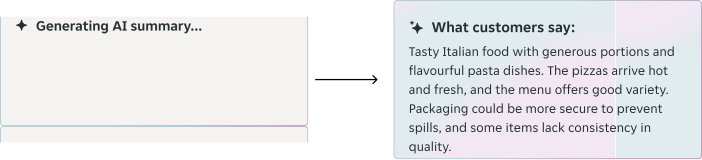
AI content frequently requires loading states whilst queries are running in the background. During this time it's important that the user understands the feature isn't broken. Using a skeleton with motion can help do this and maintain a level of engagement for the user.
- The 'thinking / loading' motion visually shows the user that something is happening.
- The copy supports this and briefly gives feedback to the user on what is happening.
When the query is complete, replace the skeleton with the content. You can also add the border animation which will highlight the new content on the page.
Language overview
The Content Design team is working on a vision piece around the use of AI Voice at JET.
While this work progresses, here is our interim guidance:
Tone and personality
Match to user's position in the flow.
- Empathetic for help.
- Friendly for search.
- Upbeat for orders.
Clarity and pronunciation
Our number one priority must be ensuring clear enunciation and measured pacing.
For example: fun or comedy accents are secondary to clarity.
Identity and demographics
This guidance will change as Voice technology develops but for now:
- Male.
- Late-20s-early-30s.
- Region-neutral English accent.