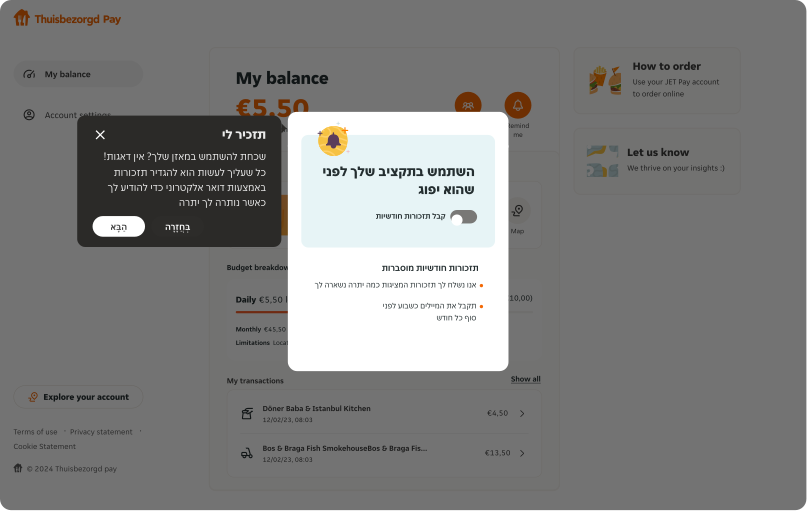
Onboarding and Guided Tour
Onboarding and guided tour patterns are essential tools for welcoming new users to a product or introducing existing users to new features.
Overview
The onboarding and guided tour pattern aims to create a smooth and engaging first interaction, helping users understand the core functionalities, value propositions, or changes within the system. By providing a clear, step-by-step guide, these patterns reduce friction, improve user confidence, and foster a positive experience from the very beginning.
Purpose
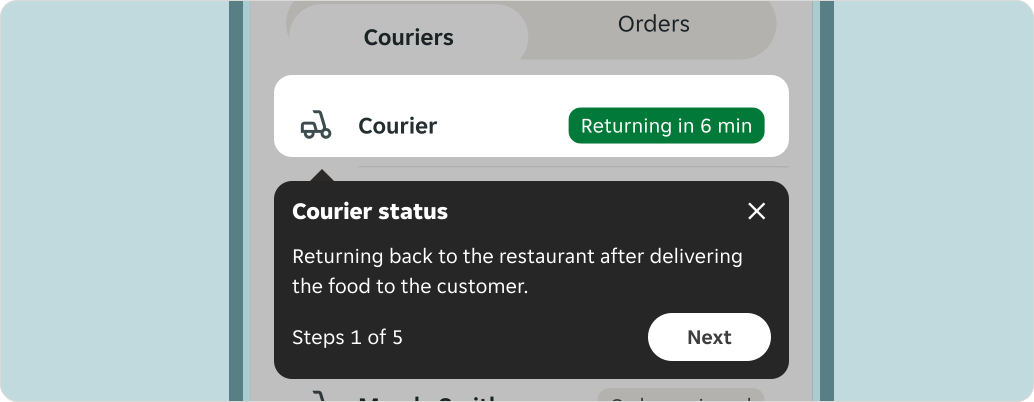
Onboarding can be designed using two approaches, depending on the purpose:
Overview onboarding
Overview onboarding provides a high-level introduction to the product or a new feature set. It helps users understand the broader context of the system, setting expectations and aligning them with the key goals of the onboarding process.
Contextual onboarding
Contextual onboarding offers a step-by-step guidance tied directly to specific features or actions. It delivers assistance as users interact with the interface, ensuring help is timely and relevant without overwhelming them.
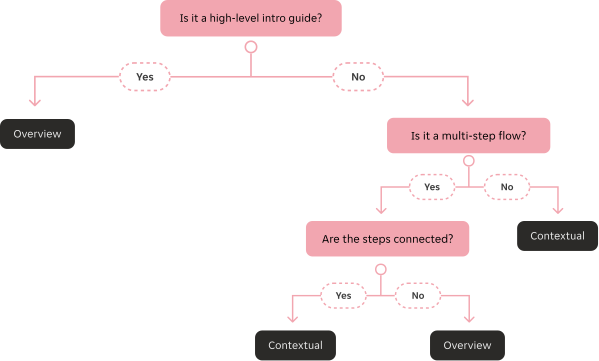
Overview onboarding options
These are UI elements you can use to enhance the onboarding experience:
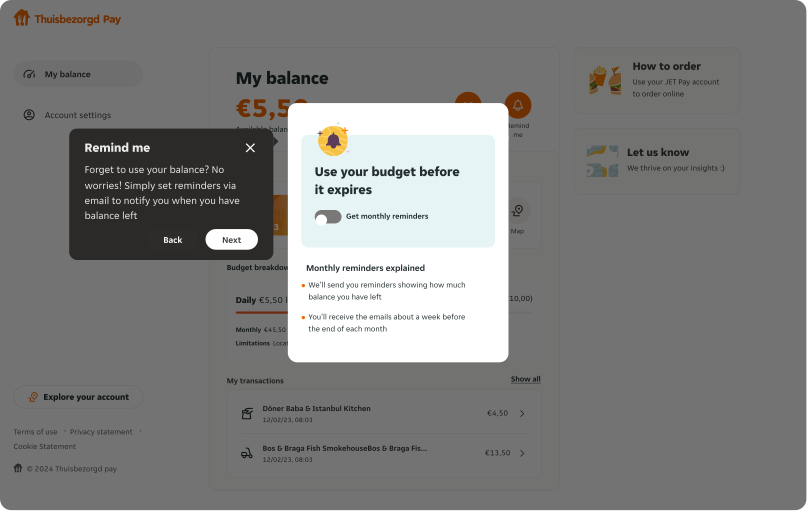
Modal
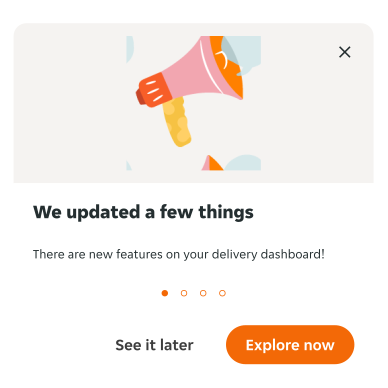
Use a Modal when you need to provide users with a high-level introduction to the onboarding process or summarise what they can expect to learn. A modal sets the stage for onboarding by creating a focused environment free of distractions, allowing users to concentrate on the essential information.
Actions
If the modal is used the beginning of the flow, always provide actions for user to start the onboarding tour and skip the tour within the component. This ensures users have full control over their onboarding experience and they can skip or exit the process at any point without feeling constrained.
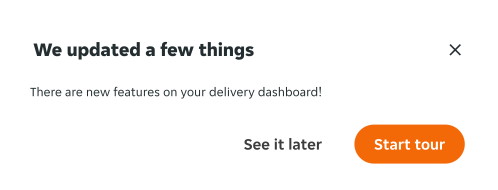
When a modal is used between steps, connecting the onboarding journey, providing actions allows users to easily navigate back and forth as needed. This flexibility gives users more control over their journey, enabling them to review previous steps or adjust their choices without losing progress.

Assets
Imagery or other assets are great for emphasising the most impactful or valuable tools and features users should explore, especially those not immediately visible in the interface.
Carousel
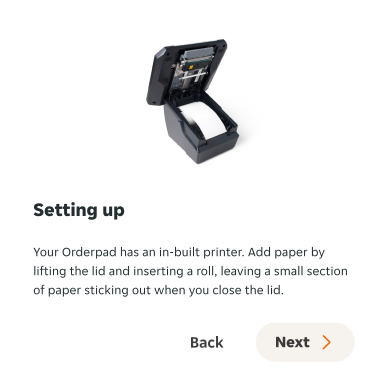
In a multi-step flow, a carousel helps users navigate through content in an organized and manageable way. It allows users to view and progress through steps one at a time while maintaining a clear overview of the entire process.
Contextual onboarding options
These are UI elements you can use to enhance the onboarding experience:
Tooltip
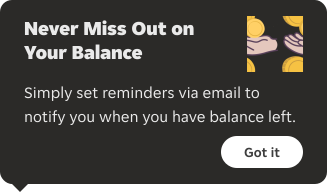
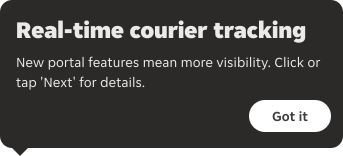
Use a Tooltip to guide users through specific features or highlight particular areas of the interface as they interact with it. Tooltips are most effective when used sparingly and targeted toward features that might not be immediately intuitive.
Assets
Adding an illustration or image to a tooltip to make it more visually engaging and fun for the user. This addition helps break down complex information, making it easier to understand.
Text style
You can choose the text style that suits the hierarchy and aligns with the overall tooltip design, ensuring consistency and clear communication of information.
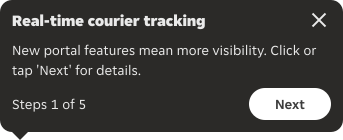
Steps indicators
Displaying information such as the current step and total steps helps users understand their progress within the flow.
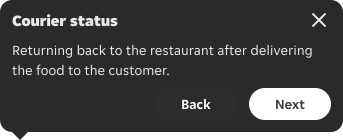
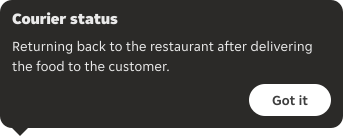
Actions
Providing additional actions allows users to easily navigate back and forth as needed.
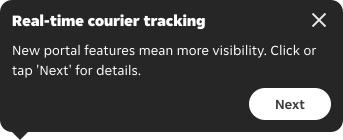
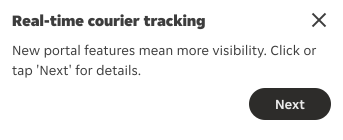
Colour variants
The default tooltip colour is dark, providing good contrast on light backgrounds. However, when tooltips are displayed on dark backgrounds, you can use inverse colour variants to ensure optimal accessibility and readability.
Close
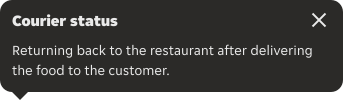
Try to always give users with the option to exit the tour, for example by adding a "Close" icon button or other options to end the onboarding journey within the component.
Spotlight
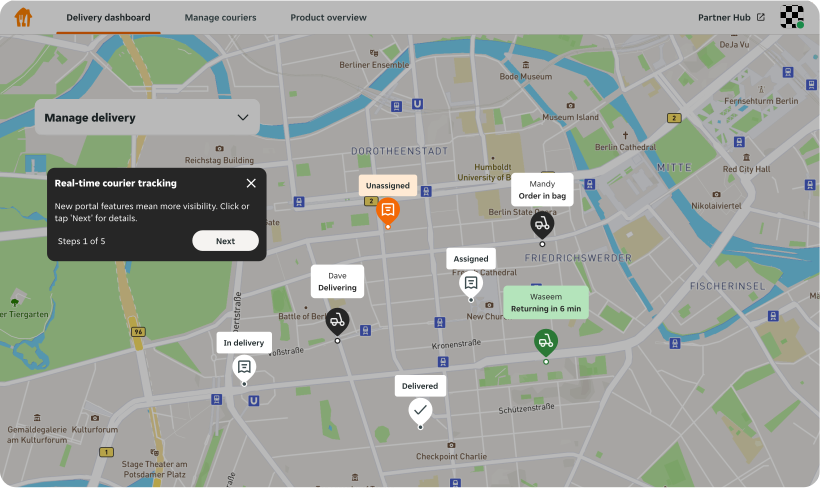
During a step-by-step or new feature guide, a spotlight can be utilised to direct attention to specific areas, helping the tooltip focus on key elements. This helps guide the user's attention, making it easier to understand the process by highlighting important sections or actions and improving clarity.
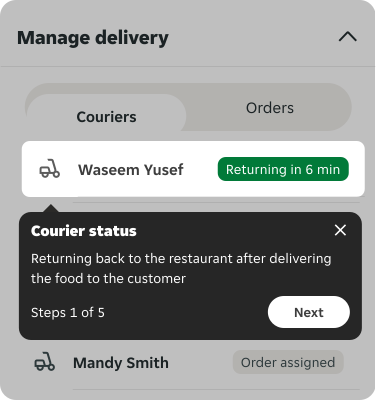
Use spotlight to all elements that are relevant to the specific feature guide, ensuring users have a comprehensive view of the functionality being explained.
Examples
LTR examples
Here are some examples of messaging in left-to-right context:
RTL examples
Here are some examples of messaging in right-to-left context: