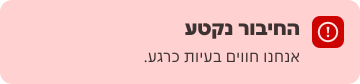
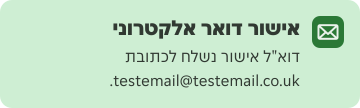
- Use the component to provide feedback on the user’s status, outcome of an action, or info on a task.
Notification
A notification is an element used to display brief messages, alerts, or updates to users within a user interface.
Dos and Don’ts
- Don’t use notification pinned to the top of the interface. See below for full usage guidelines between notification and toast.
Anatomy
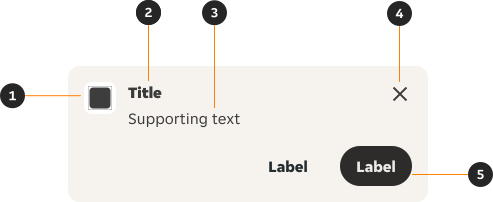
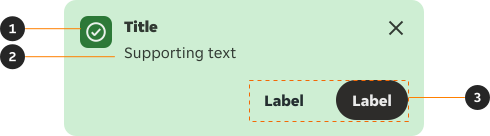
- Icon (Optional): Leading icon that visually reinforces the content.
- Title (Optional): Provides overall content of the content.
- Supporting text: Provides supporting information to the user.
- Close (Optional): Lets the user dismiss the notification.
- Actions (Optional): Button options let the user proceed with or dismiss the notification.
Variants
Neutral
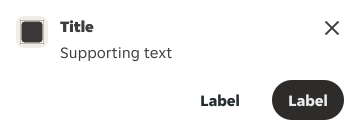
Neutral notification provides generic messages to users that may not be related to the current action or task they’re performing. Does not require immediate action and can be dismissed on a timer or persist, depending on the content.
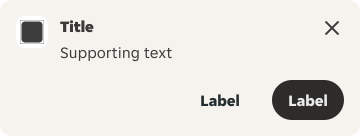
Neutral alternative
Exists as an alternative option to Neutral that can be visible over grey backgrounds, with the same usage as the neutral variation.
Translucent
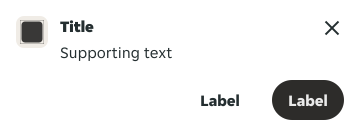
Translucent notifications appear on top of content, creating a layered effect.
Info
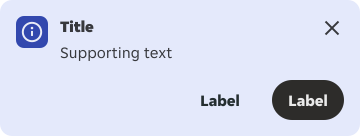
Provide additional information to users that may not be related to the current action or task they’re performing. Do not require immediate action and can be dismissed on a timer or persist, depending on the content.
Success
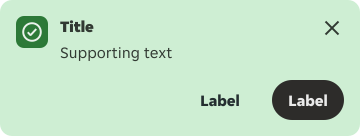
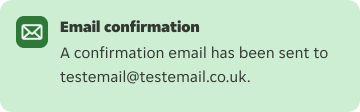
Confirm a task was completed as expected. Typically do not require further action and can be dismissed automatically or persist in a nonintrusive manner.
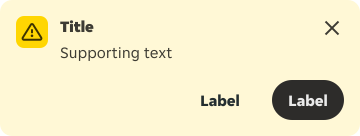
Warning
Inform users that they are taking actions that are not desirable or might have unexpected results. Often persist until the user dismisses the notification or continues in their task.
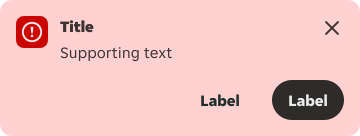
Error
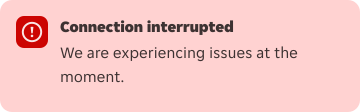
Inform users of an error or critical failure and optionally block the user from proceeding until the issue has been resolved. Always persist until the user dismisses them or resolves error.
Modifiers
Compact
The action(s) relocate to be in line with the supporting text, which helps to reduce the vertical space. The close prop is not available due to the repositioning of the actions.


Icons
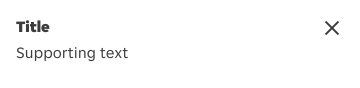
Removing icons
Supporting icons can be removed for all variants if not required.
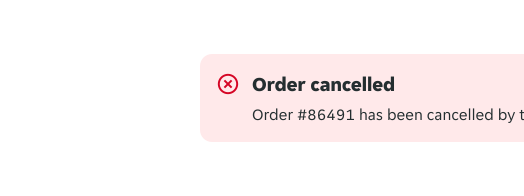
Replacing icons
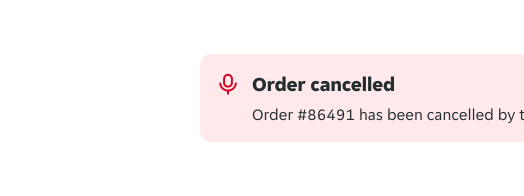
When choosing an icon, ensure that is visually supports the content and message of the notification.
Title
The title can be removed where it is not necessary.

Actions
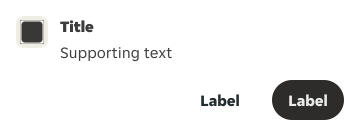
Dual actions
When two separate actions are required.
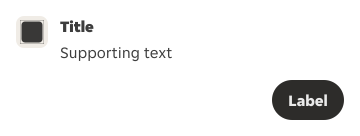
Single action
When a single action is required.
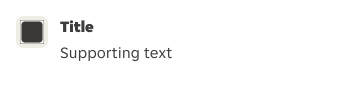
No actions
When the user is not required to take action against the notification.
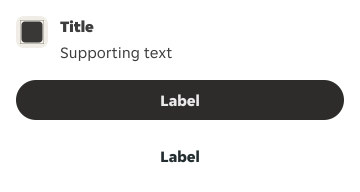
Stacked actions
Actions have the option to wrap due to the available horizontal space.
Sizes
We provide two sizes for both inline and full width notifications.
Large
The large variant uses 16px spacing around the content and small size action and close buttons.
Large default
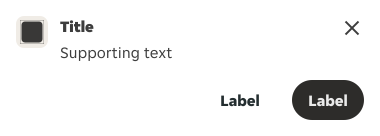
Large compact
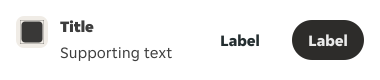
Small
The small variant further reduces the overall visual size. Spacing around the content is reduced to 8px, and action use the XSmall size. Text tokens are scaled down to match the tighter layout. This variant is ideal for highly compact interfaces or simple messaging, where minimal disruption is preferred.
Small default
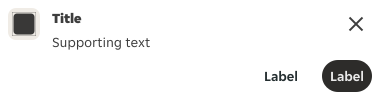
Small compact

Usage
Toast vs Notification
Notification: Block of messaging appearing either at the top or somewhere within the interface, inline with page/screen content.
Toast: Non-disruptive and temporary messages, typically in the bottom centre or bottom left of the interface. Provides succinct feedback on the outcome of a user action.
Content
Notifications provide limited space for content, and therefore the content must be short and concise. A user should be able to quickly scan the notification, be apprised of the situation, and know what to do next.
Title
- The title should be short and descriptive, explaining the most important piece of information.
- When possible, communicate the main message using just the title.
Supporting text
- Be concise and avoid repeating or paraphrasing the title.
- Limit content to one or two short sentences.
Overrides
- Leading icon: Leading icon can be overridden, but the chosen icon must be appropriate for the message context. Find more information in the Modifiers: Icon section.
- Supporting text: The supporting text can include a link component or bold type, when the string is a complete sentence or more.
- Buttons: The default Button component size is Small-Productive, it can be decreased to XS. When used as a pair, ensure both buttons are the same size.
Alignments
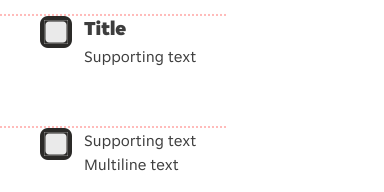
Text content is top-aligned with the icon by default. If there is only a single line of content (without a title), the text is centre-aligned with the icon for visual balance.

Interactions
Close icon
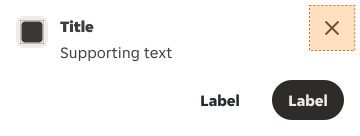
When the user clicks the icon button, the notification is dismissed.
Action buttons
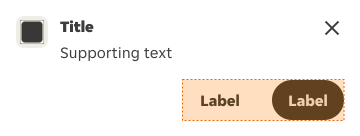
The actions in the notification can do things like redirecting the user. This might result in the notification closing once a task is done, or it could directly close the notification.
Position
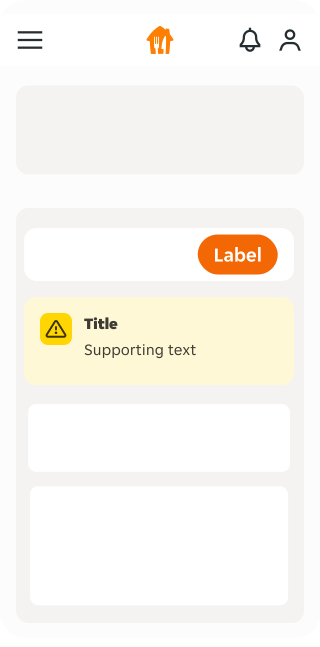
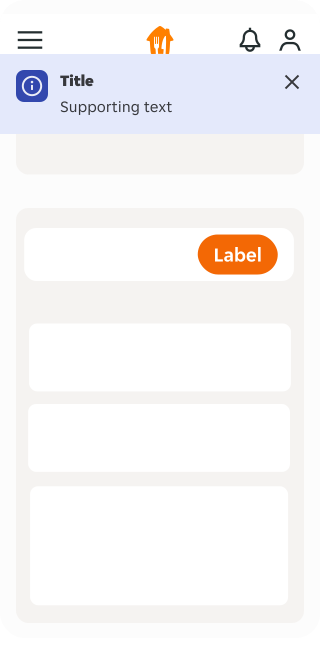
There are two position options available for the notification component.
Inline with content
Notifications can appear anywhere inline within the content.
Full width
Notifications can appear full width, and always appears at the top of the interface, under the header.
Examples
LTR examples
Here are some examples of notifications in left-to-right context:
RTL examples
Here are some examples of notifications in right-to-left context: