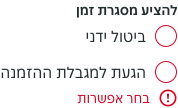
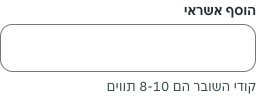
- Always use in combination with a form element to provide additional information or feedback.
Assistive Text
Provides users with extra context, guidance, or validation to ensure accurate input.
Dos and Don'ts
- If displaying success or error variants, don't show until the user has finished entering information.
Anatomy
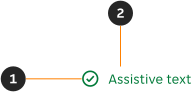
- Icon: Visually supports the type of message. Only available for error and success validation.
- String: Provides informative information to the user.
Variants
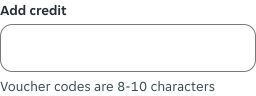
Default
Shown when instructional information is required to help the user complete a form element.

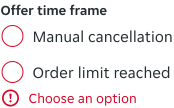
Error
Shown when an input fails validation, and feedback is required on an individual form.

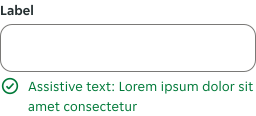
Success
Shown when an input passes validation, and feedback is required on an individual form.

Content
All content should use sentence case.
Default content
- Should provide additional instructional information that helps the user fill out a form field, as clearly and succinctly as possible.
- Use sentence case.
Error content
- Should describe the error and inform the user on how to fix it, as clearly and succinctly as possible.
- Use sentence case.
Success content
- Should describe the success as clearly and succinctly as possible.
- Use sentence case.
Overflow
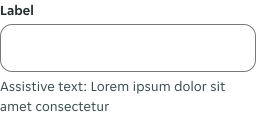
Multiple words overflow
When a group of words extends beyond the available horizontal space, the text automatically wraps onto a new line, with no maximum height restriction.
Behaviours
If a validation variant of the assistive text is required for error or success, it appears once the field has been validated; and will replace the default assistive text if one was present.

Examples
LTR examples
Here are some examples of assistive text in left-to-right context:
RTL examples
Here are some examples of assistive text in right-to-left context: