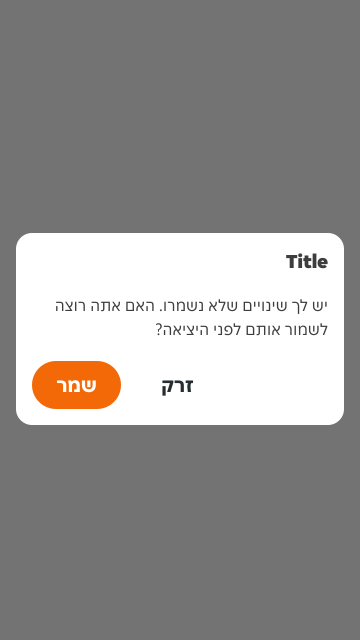
- Use dialogs in the neutral-alternative variant to display critical information and display urgent messages.
- Choose variants in brand colours for promotional and non-critical content.
- Use dialogs to drive user input or prompt for decisions.
- Use dialogs for confirmations for important actions.
- Ensure all content meets AA accessibility standards and is read by assistive technologies.
Modal
A modal is a surface that overlays the page’s main content and is used to display information, gather input or confirm actions.
[Android] Dialog
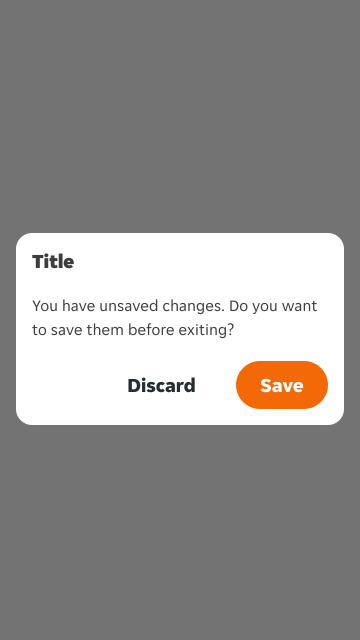
A Dialog is a pop-up window that prompts the user for interaction or information within an app interface.
Dos and Don’ts
- Don't allow excessive content length. Modals are for focused tasks, check out the Overlay patterns documentation to see if another component might be more suitable.
- Don't use dialogs for minor notifications.
- Limit and avoid excessive interruptions.
- Don’t add crucial information to images.
Anatomy
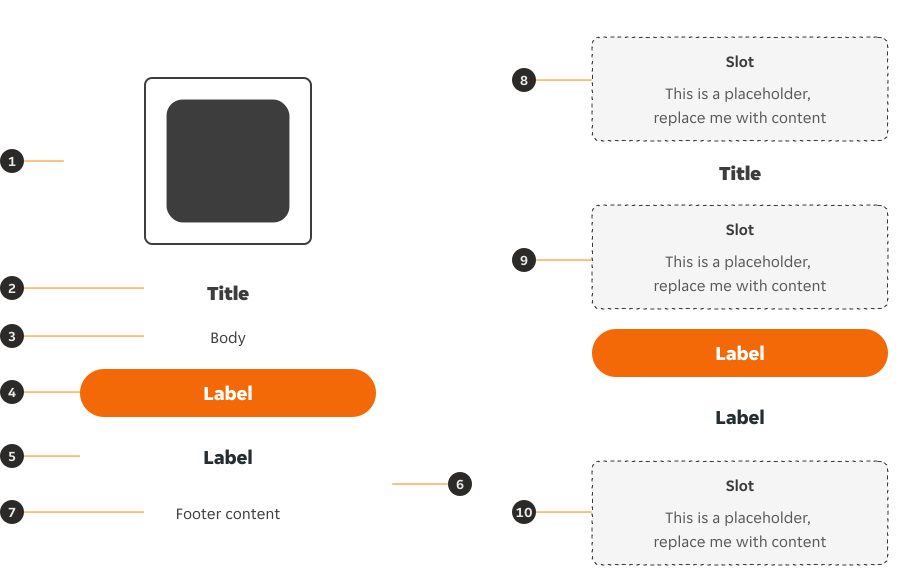
- Header (optional): Adds content to the header. Choose from illustration, image or slot.
- Title: Concise heading for clarity.
- Body (Optional): Clear description to offer more information/context.
- Primary Button: Main action for user interaction. Variant overrides available.
- Ghost Button (Optional): Secondary action option. Variant overrides available.
- Container: Dialogs are in an elevated container.
- Footer content (Optional): Ability to add non interactive text below buttons.
- Header slot: Content which can be replaced with designed local components.
- Body slot (Optional): Content which can be replaced with designed local components.
- Footer slot (Optional): Content which can be replaced with designed local components.
Variants
Neutral - alternative
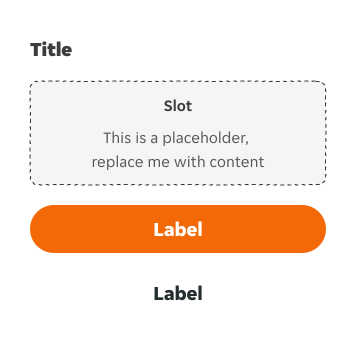
02 Orange subtle
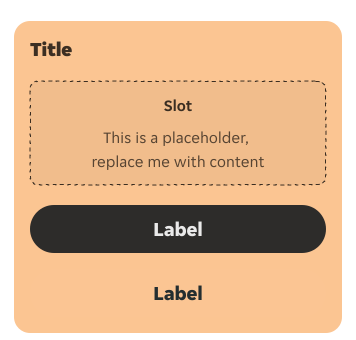
03 Cupcake strong
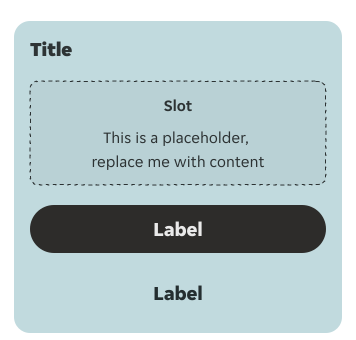
03 Cupcake subtle
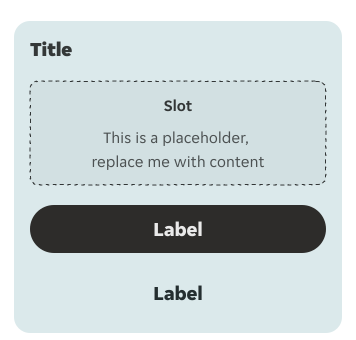
04 Berry strong
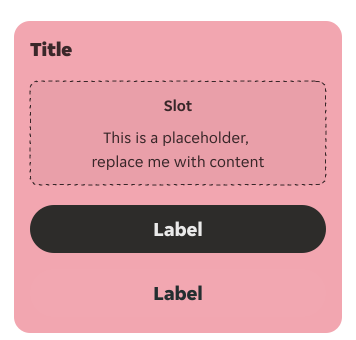
04 Berry subtle
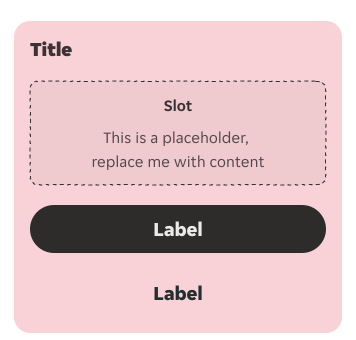
05 Turmeric strong
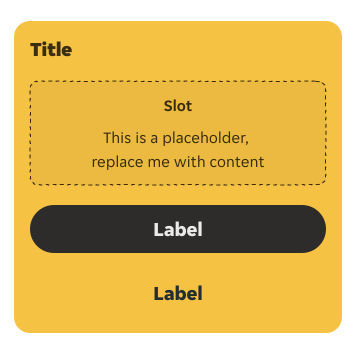
05 Turmeric subtle
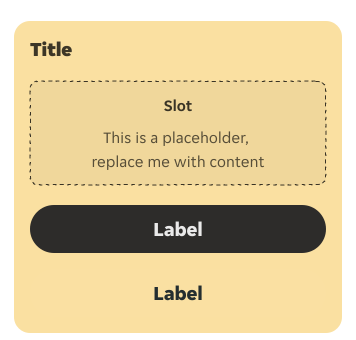
06 Aubergine strong
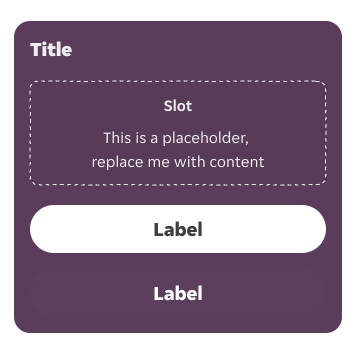
06 Aubergine subtle
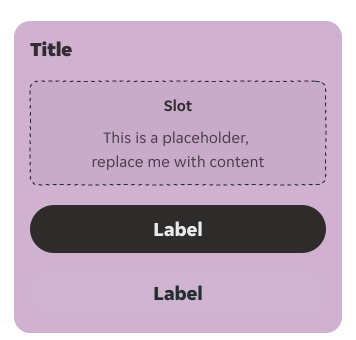
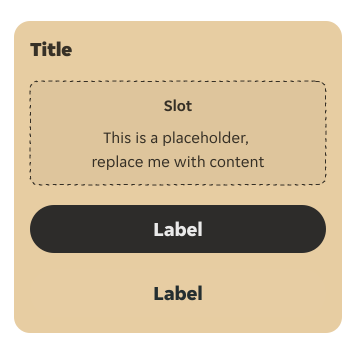
08 Latte strong
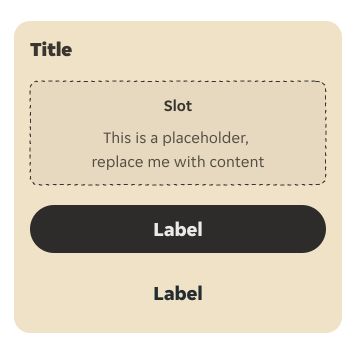
08 Latte subtle
Usage
Colour
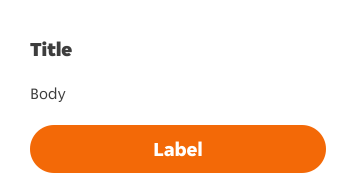
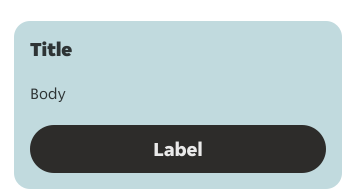
For critical messaging, the Neutral - alternative variant must be used. For non-critical messaging (offers/vouchers/promotions), the variants with coloured backgrounds can be used.
Critical messaging
Promotional messaging
Alignment
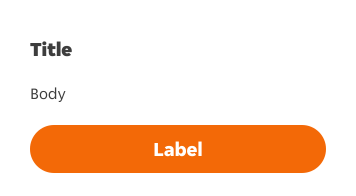
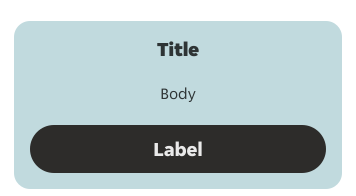
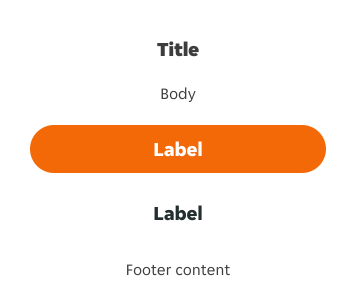
Critical messaging should always be left-aligned. Promotional messaging can be center-aligned.
Critical messaging
Promotional messaging
Title prominence
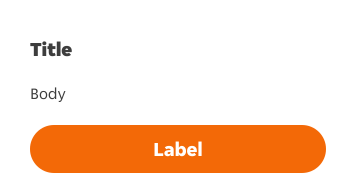
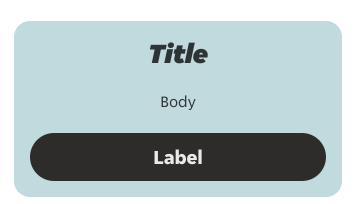
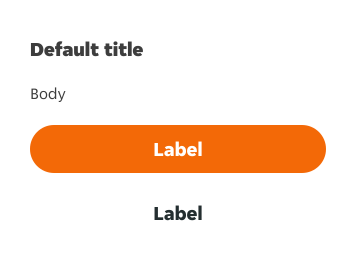
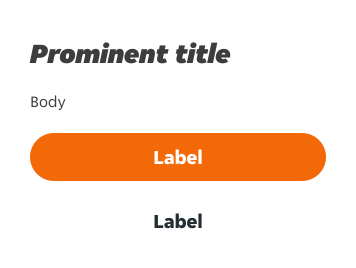
Critical messaging should use default title styling. Promotional messaging can use prominent styling.
Critical messaging
Promotional messaging
Sizes
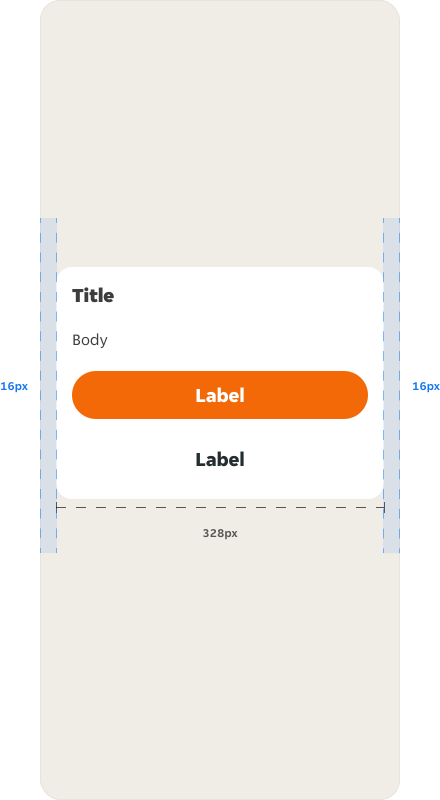
The default width of the component is set to 328px, however may be adjusted to fit specific device, ensuring a 16px margin is applied from the edge of the screen.
Default
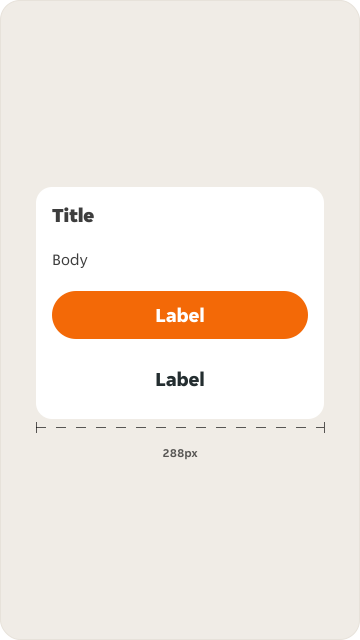
Minimum Size
Modifiers
Emphasis through colour
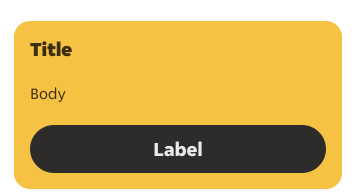
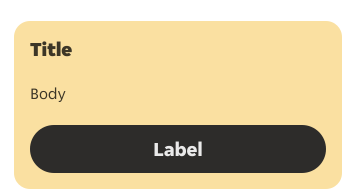
Depending on the level of visual prominence you want to give to the Modal, you can choose between strong or subtle emphasis.
Strong
Subtle
Title
Depending on the level of visual prominence you want to give to the title, you can choose between default or prominent emphasis.
Default title
Prominent title
Centre-alignment
You can use centre-alignment in a dialog to highlight short messages, like titles or brief instructions, enhancing readability and importance. However, longer text or multiple elements may benefit from left-aligned text for better flow.
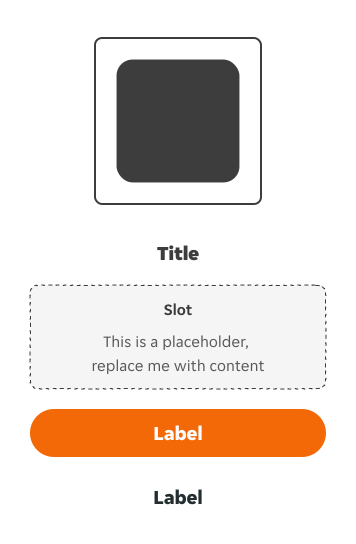
Header content
Illustration
You can use an illustration in the header of a Dialog to add visual context, this can reinforce the modal's purpose and enhance engagement while aligning with the app's design.
Image
You can use an image in the header of a Dialog to add visual context. This is available either with full bleed or with 16px margin either side.
Full bleed image
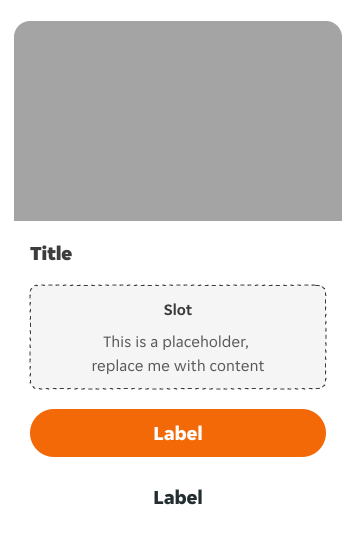
Image with margin
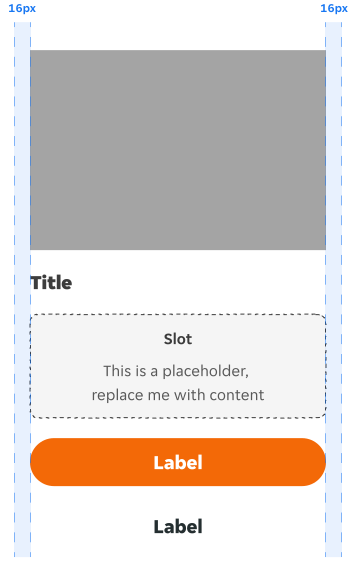
Image size
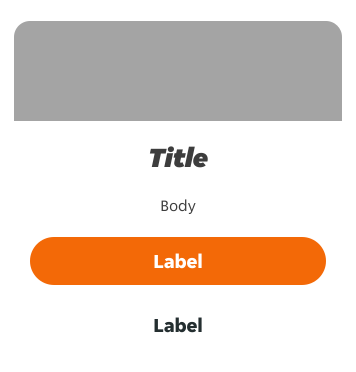
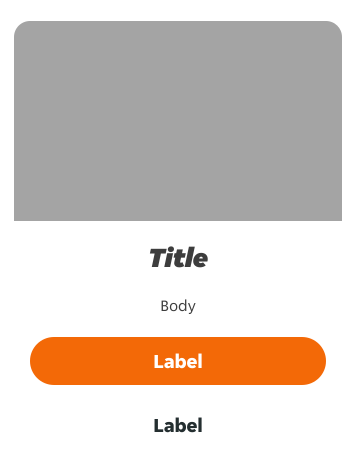
There are 3 aspect ratios for imagery within the modal component. Aspect ratios are locked and will keep their height and width properties when resizing the component. There are 3 available sizes/ratios:
Small (3:1)
Medium (16:9)
Large (4:3)
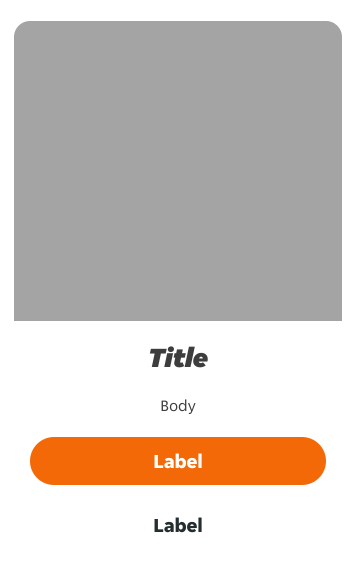
Animation
Animation can be used in the header of a Dialog to add visual context. Lottie files will need to be used for implementing this in development; however, GIF animations can be used in Figma files for visual purposes only.
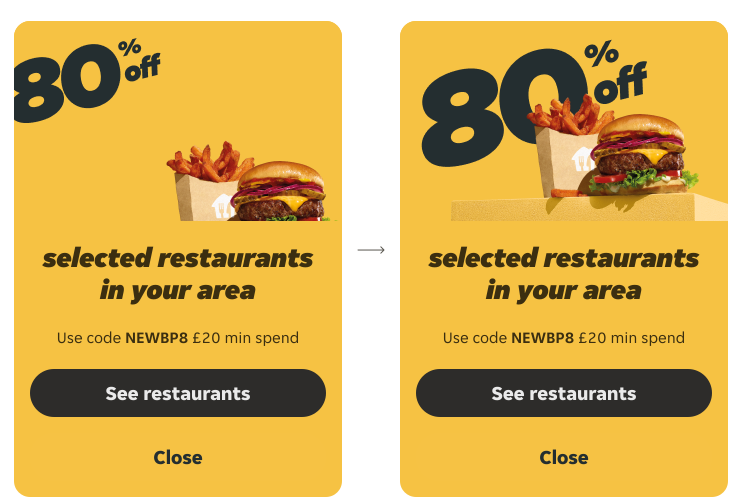
Hidden decorative content in the header on landscape mode
On landscape mode the visual property can be disabled. This ensures users can easily view and scroll through content.
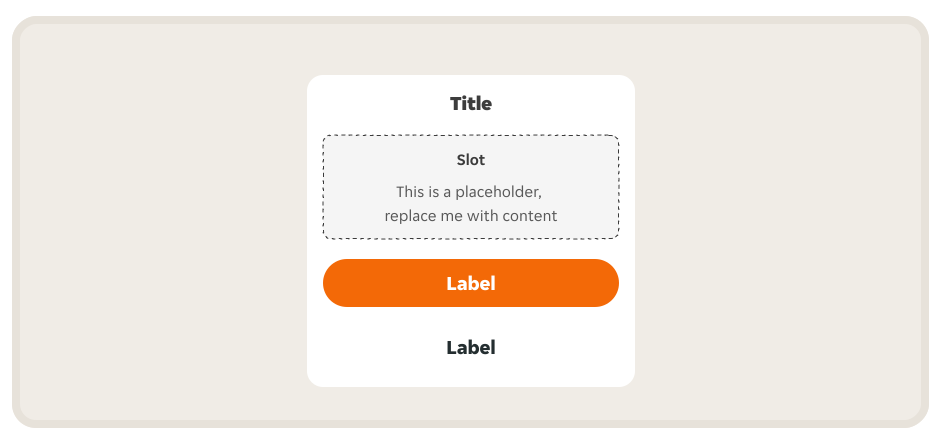
No body
You can use a dialog with no body for quick confirmation messages, alerts, notifications or confirmation prompts where the title alone is enough.
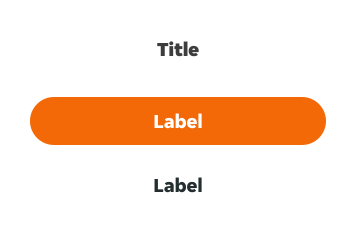
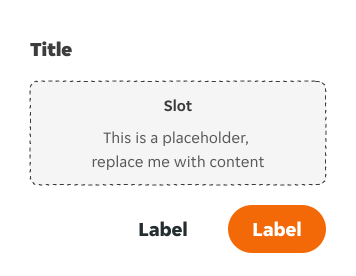
Side by side calls to action
You can use side-by-side calls to action when space is limited or when both actions are equally important. This is often seen in confirmation prompts for efficient interaction, like "OK" and "Cancel".
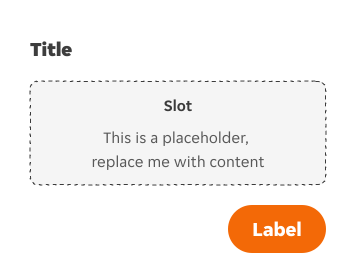
Single call to action
You can use a single call to action in a dialog when there's only one primary action and to simplify user decisions. This is often seen in scenarios without alternative choices.
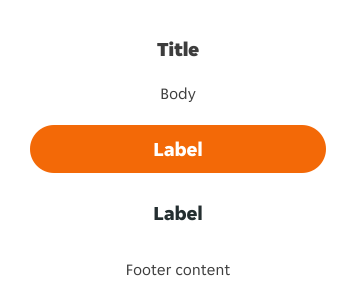
Footer
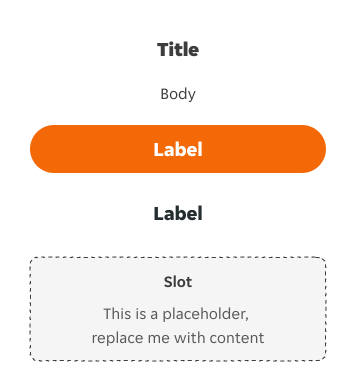
Designers have the option to add non-interactive text below the actions, or they can use a slot to add in other content below the actions. This option will be hidden by default and will be enabled by toggle.
Footer text
Footer slot
Interactions
Closing the dialog
Tapping outside the dialog's boundaries will close it, providing an intuitive way to dismiss it without interacting with specific UI elements like calls to action (unless that is otherwise specified by the interaction).
This interaction is enabled by default. Designers need to ask engineers to disabled during in the handover.
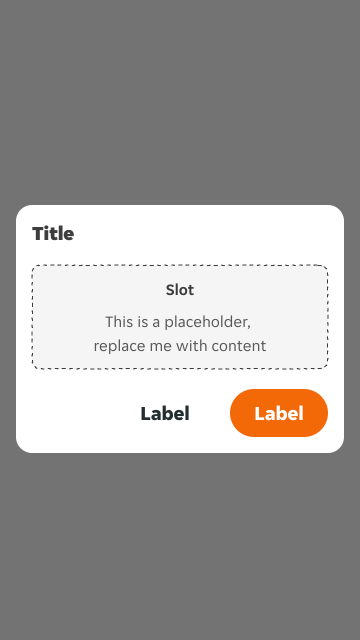
Content
Title content
Ensure the title clearly communicates the purpose or topic of the dialog. Keep the title brief and to the point, avoiding unnecessary wording. Make sure the title directly relates to the content of the dialog, helping users understand its significance. Maintain consistency in tone and style with the rest of the application's UI for a cohesive user experience. Titles have the ability to toggle on and off prominence:
- Default (Heading M/Narrow)
- Prominent (Heading XL/Narrow italic)
Body
Provide clear and concise information or instructions that help users understand the context or purpose of the dialog. Include only essential details relevant to the user's current task or decision-making process, avoiding unnecessary information.
Calls to action
Clearly label each call to action to indicate its purpose and the outcome of selecting it. Use verbs that prompt immediate action and clearly convey what will happen when the user selects the option. Use language that is familiar and understandable to the target audience, avoiding technical or industry-specific terms that may confuse users.
Footer content
Use it for non-interactive, secondary information. This includes disclaimers, terms and conditions, legal text, and specific offer restrictions. Do not use it for primary actions or critical messaging. Content here must be purely supplementary and non-essential to completing the main task of the modal.
Overrides
Title overrides
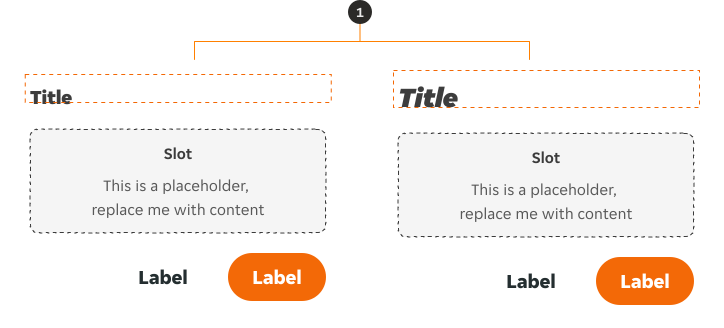
- Title: Title can be overridden to use any of the Heading font tokens. As a default state, the title will use Heading M / Narrow. When the prominent toggle is engaged, Heading XL / Narrow italic is applied.
Buttons overrides
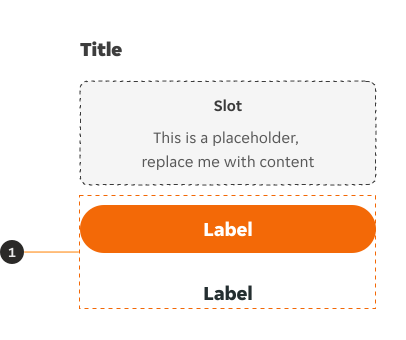
- Buttons: The Button’s size can be decreased, and their variant can be changed. But all changes must adhere to the button pair guidelines if they are kept as a pair, including the size of both buttons remaining consistent.
Slots available
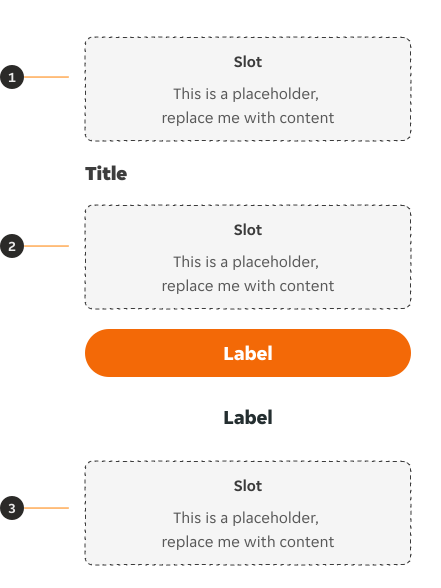
- Header slot: Hidden by default.
- Body slot: Available as a variant
- Footer slot: Hidden by default
Examples
Here’s some examples of a Dialog in context:
LTR examples
RTL Examples