- Use bottom sheets when you need to display additional information, controls or functionalities related to the underlying content.
- Use where the user needs to perform one specific task.
- Use an overlay scrim in between the two layers of content.
Bottom Sheet
A bottom sheet is a surface attached to the bottom of the screen that displays additional information or actions while keeping the main content visible.
Dos and Don'ts
- Don’t use bottom sheets in wide screens (over 768px wide). Use a modal box instead.
- Avoid stacking a bottom sheet on top of another as this can create usability issues and confusion in a user flow. Check the Overlay patterns guidelines for alternatives.
- Don’t use them for multi-step flows. Use a full screen sheet instead.
Anatomy
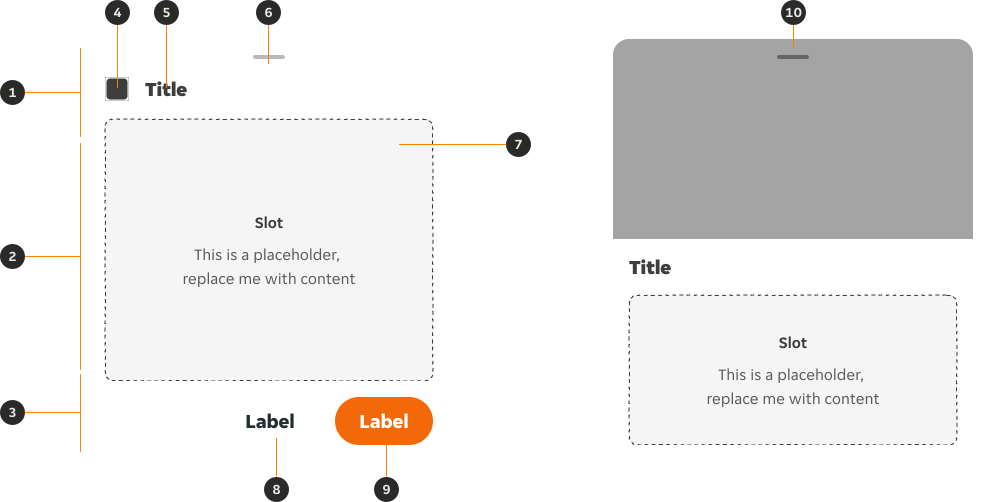
- Header: Area where the title of the bottom sheet is displayed, along with its control method.
- Content: Flexible area which can contain a wide range of contents and layouts.
- Footer (Optional): Contains the different actions you can perform with this bottom sheet.
- Icon (Optional): Visually highlights the nature of the contents in the bottom sheet.
- Title (Optional): Sums up the contents of the bottom sheet in one category.
- Pull tab (Optional): Allows the user to hide the bottom sheet.
- Slot (Optional): Nested component which will be replaced by the actual Bottom Sheet content.
- Primary CTA (Optional): Allows the user to perform an action.
- Secondary CTA (Optional): Allows the user to perform an action.
- Image/Illustration CTA (Optional): Used to display an image or illustration as the head of the bottom sheet.
Variants
Variants are just indicative templates of the type of content a bottom sheet can hold. For custom bottom sheets check the ‘Custom bottom sheets’ section.
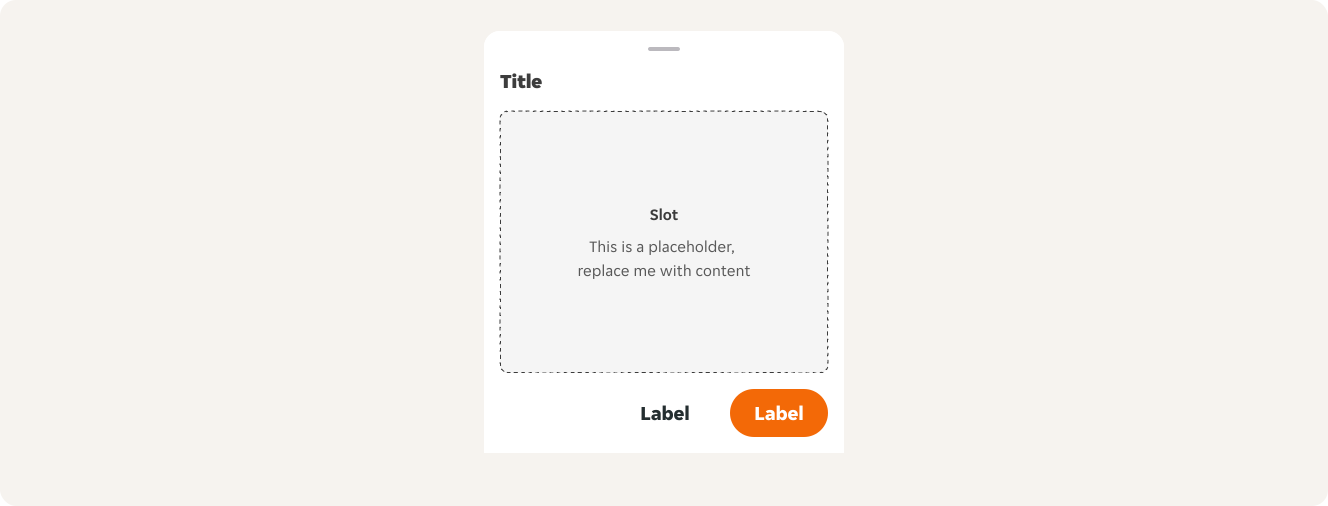
Default
This is the default variation of the Bottom Sheet, which features a nested Slot component which can be replaced by local component containing the Bottom Sheet’s contents.
Modifiers
General modifiers
Footer toggle
The footer can be toggled off for instances where there isn’t a need for button actions.

Header specific modifiers
Controls
Controls define how the user can interact with the bottom sheet itself. There are two control variants available: Pull tab or None.
Pull tab
The user can close the Bottom Sheet by dragging the pull tab down. The user can expand the Bottom Sheet by dragging the pull tab up.

None
The user can’t close or hide the bottom sheet.

Contents
Indicates the type of content displayed in the header area. There are four variants:
Header
Default
Text only header, which can include a title, an icon and a close/pull tab control.
Empty
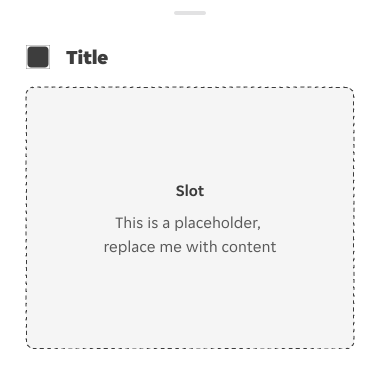
This instance will only show the selected control, removing any title, icon, image or illustration.
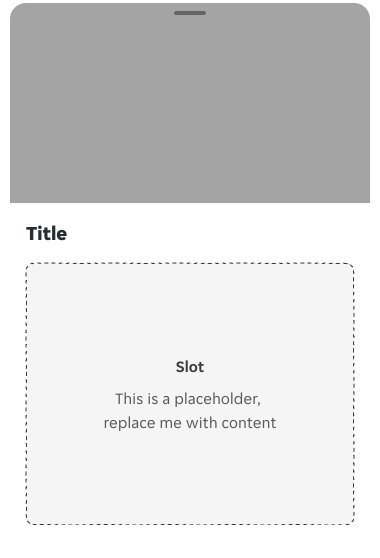
Image
This header variation can be used to display an image.
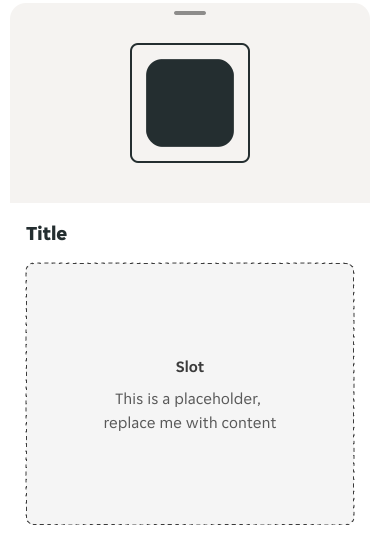
Small illustration
This header variation can be used to display small illustrations only. They display at 120x120dp.
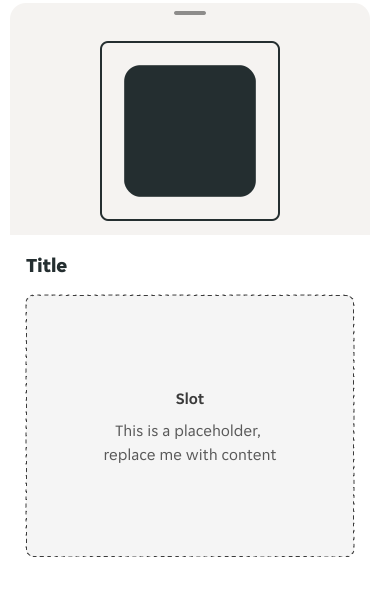
Large illustration
This header variation can be used to display large illustrations only. They display at 180x180dp.
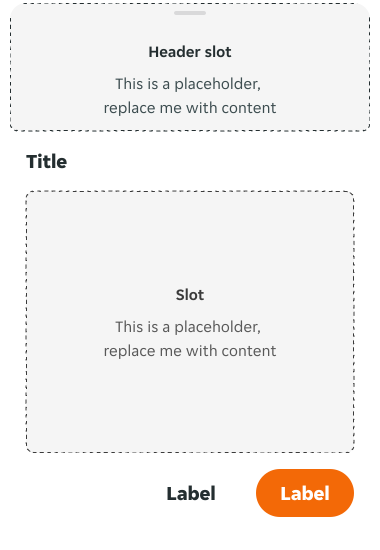
Header slot
This variation allows you to display any custom content within the header area. It spans the full width of the bottom sheet header. It’s especially useful for designs with full-width background elements.
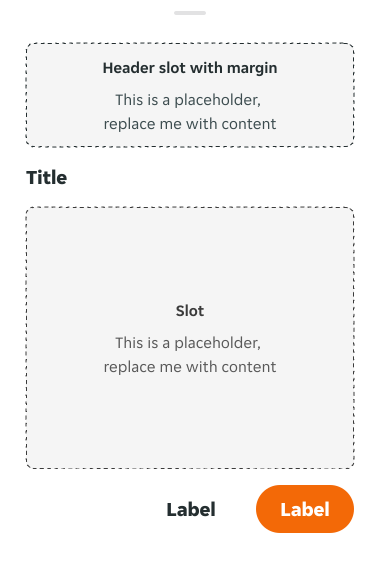
Header slot - with margin
This variation also supports custom content for the header, but it includes side margins, ensuring the content aligns with the standard layout.
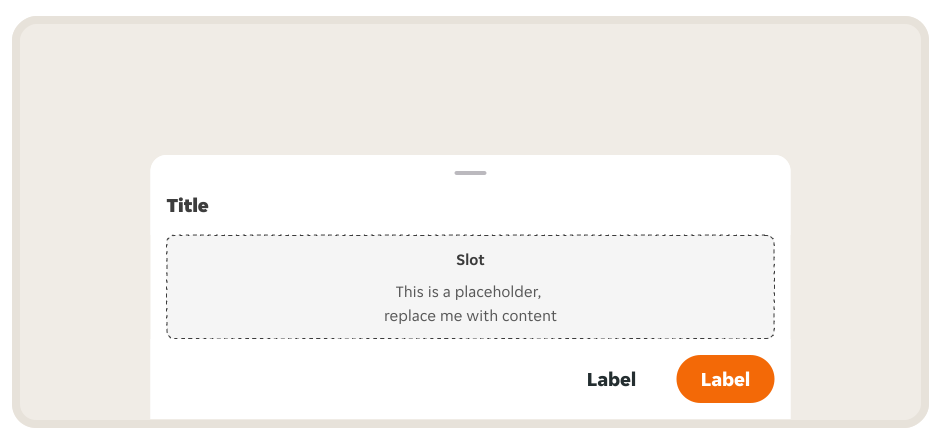
Hidden images on landscape mode
On landscape mode the visual property is disabled by default. Ensuring users can easily view and scroll through content.
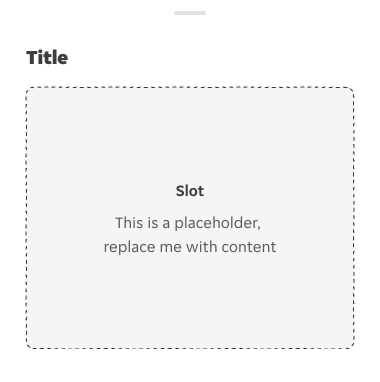
Title
There are several modifiers which have an effect on the way the title is displayed. This instance only shows the title.
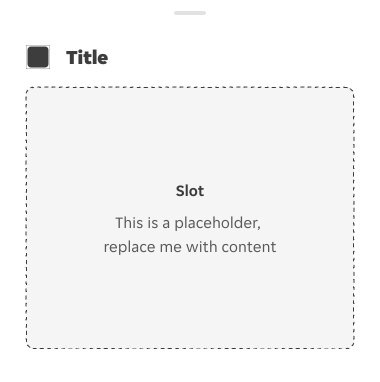
Title + icon
This instance shows the title paired with an icon to provide more context and visual flair.
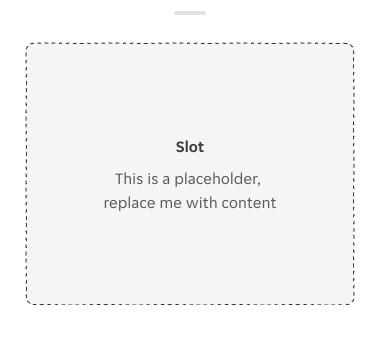
None
This modification hides the title. It should be used only when the title is not necessary.
Footer specific modifiers
Footer actions
Bottom sheets will often include actions that can be performed by the user to resolve, dismiss or acknowledge the information presented in the bottom sheet. However, these actions should be kept to a minimum. We offer the following two variants:
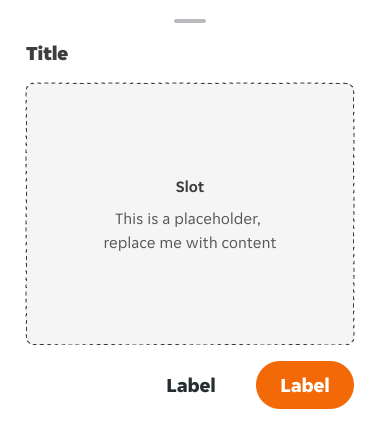
Two actions
Use it when you need to offer both a primary and secondary action. Usually these represent the main action of the Bottom Sheet (e.g. ‘Acknowledge’) and an alternative action (e.g. ‘Dismiss’).
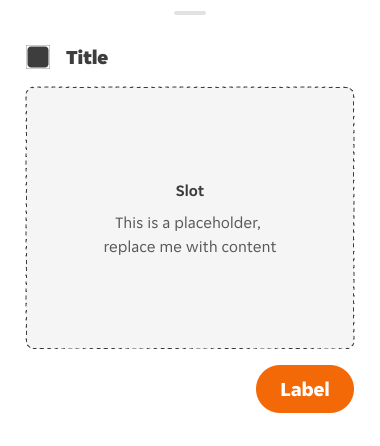
One action
Use it when you only have one action within your Bottom Sheet.
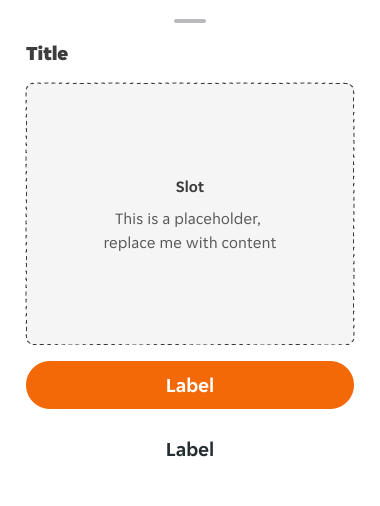
Stacked buttons
Used for an alternative layout, mainly when button labels are too long.
Fixed elements
Sometimes the content inside our Bottom Sheets will be longer than the space available in our viewport. In these instances content might have to be scrolled so it can be read entirely by the user. The following section outlines the behaviours of the Bottom Sheet’s header and footer when there is an overflow of content.
Scrolled header
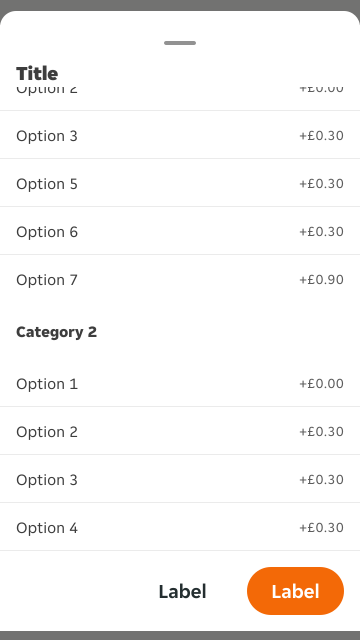
In Bottom Sheets where content needs to be scrolled, the header should lay on top of the scrolled content. To visually indicate this, an elevation token ($elevation-04) has been applied to the ‘Scrolled’ variant of this nested component.
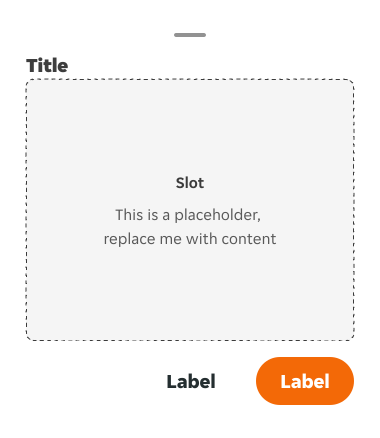
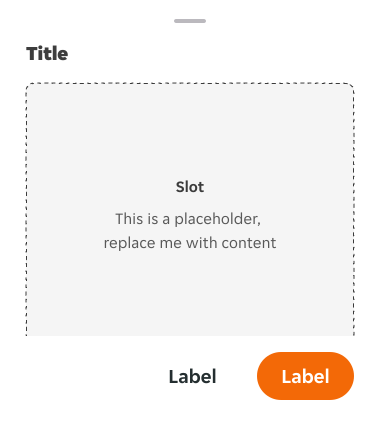
Fixed footer
Used when the content inside the bottom sheet is longer than the total height of the screen, but the actions that can be performed in the Bottom Sheet need to be visible at all times. To visually indicate this, an elevation token ($elevation-05) has been applied to the ‘Fixed’ variant of this nested component.
Content
-
A bottom sheet causes all content and UI elements behind it to display a scrim. Tapping the scrim dismisses both the bottom sheet and scrim from view.
-
The contents of the bottom sheet can be customised by using the figma slot.
Overrides
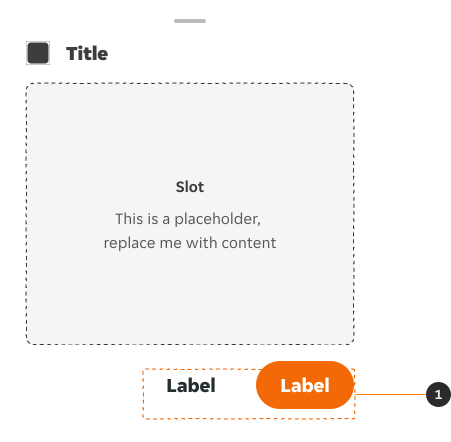
- Buttons: The Button’s size can be decreased, and their variant can be changed. But all changes must adhere to the button pair guidelines if they are kept as a pair, including the size of both buttons remaining consistent.
Overflow
To provide access to its top actions, the initial vertical position of bottom sheets should be capped at 50% of the screen height. Bottom sheets whose contents exceed 50% of the screen height can then be pulled up across the full screen, scrolling internally to access their remaining items.
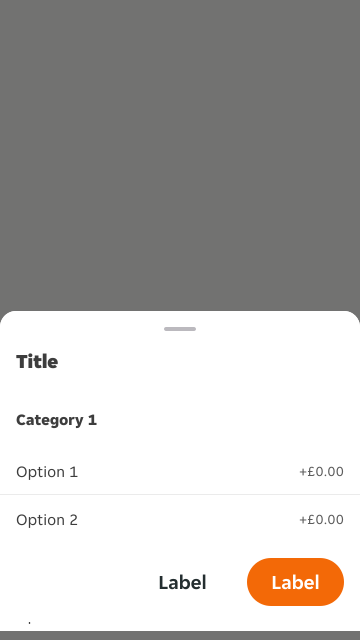
Content from a bottom sheet that initially appears below the screen edge becomes visible when you drag the sheet into view.
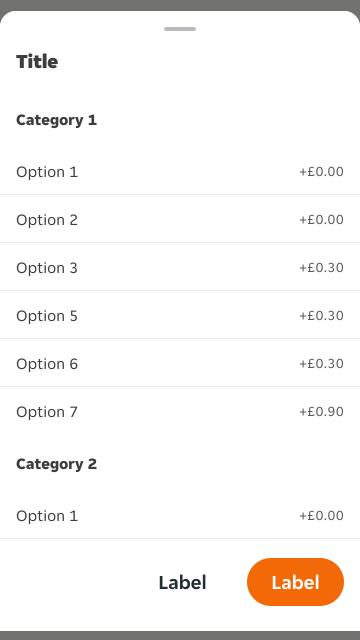
Once the bottom sheet has been scrolled up and the header has reached the top of the screen, the header will become fixed to the top so that Bottom Sheets can continue to be closed comfortably.
Accessible text scalling
Text wrap
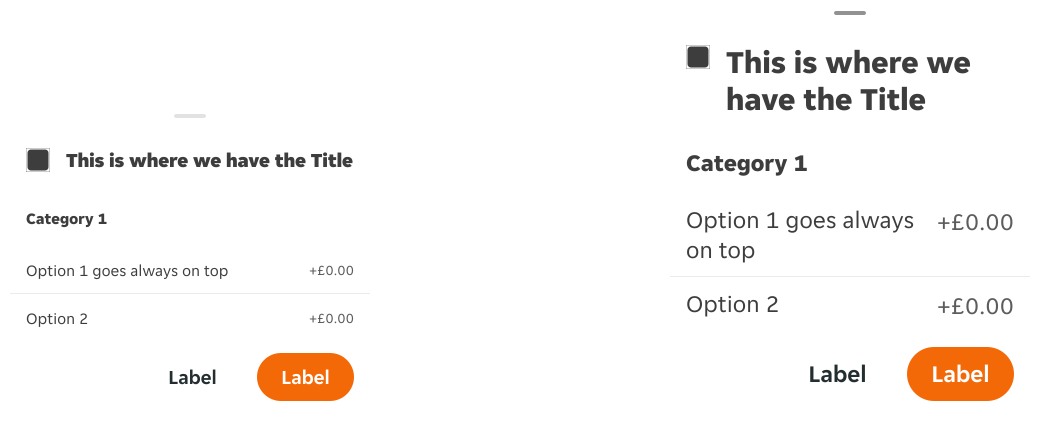
When a user activates the accessible text scaling options on their device, all text in the BottomSheet component and slot content scales. Text should wrap into a new line if needed within the container to accommodate the new text size.
Buttons alignment
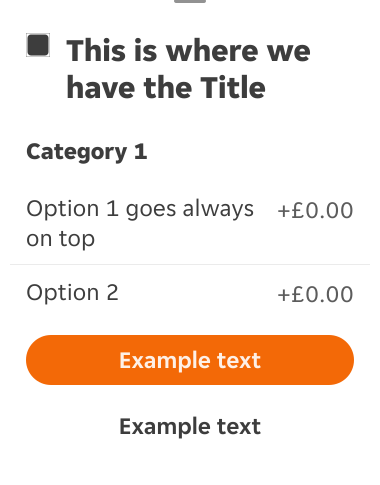
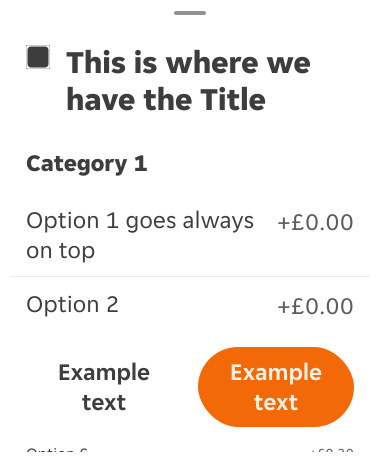
Text scaling can impact button alignment. If horizontal alignment was chosen and text scaling causes button labels to exceed the available space, the buttons will automatically shift to a vertical stack. Avoid button labels wrapping where possible.
Do: Test designs with text scaling to ensure that content remains legible and functional at larger sizes. Change the button alignment to vertical stack if needed to accommodate larger text sizes.
Don't: Avoid button labels wrapping where possible.
Examples
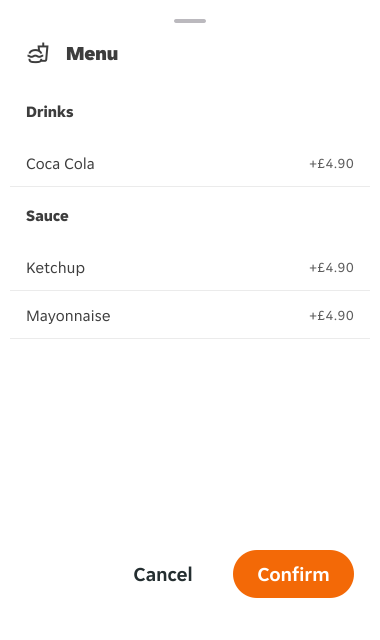
LTR example
Here are some examples of Bottom Sheet in LTR context:
RTL example
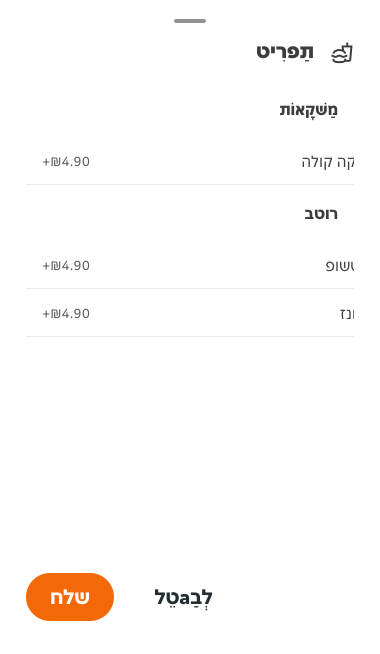
Here are some examples of Bottom Sheet in RTL context: